
Orders and courses
The order is the agreement with the customer — what, from where, to where, when and for how much. The course is the actual carrying out: with which truck and driver (or by a subcontractor) and at which stage it is. One order can have several courses.
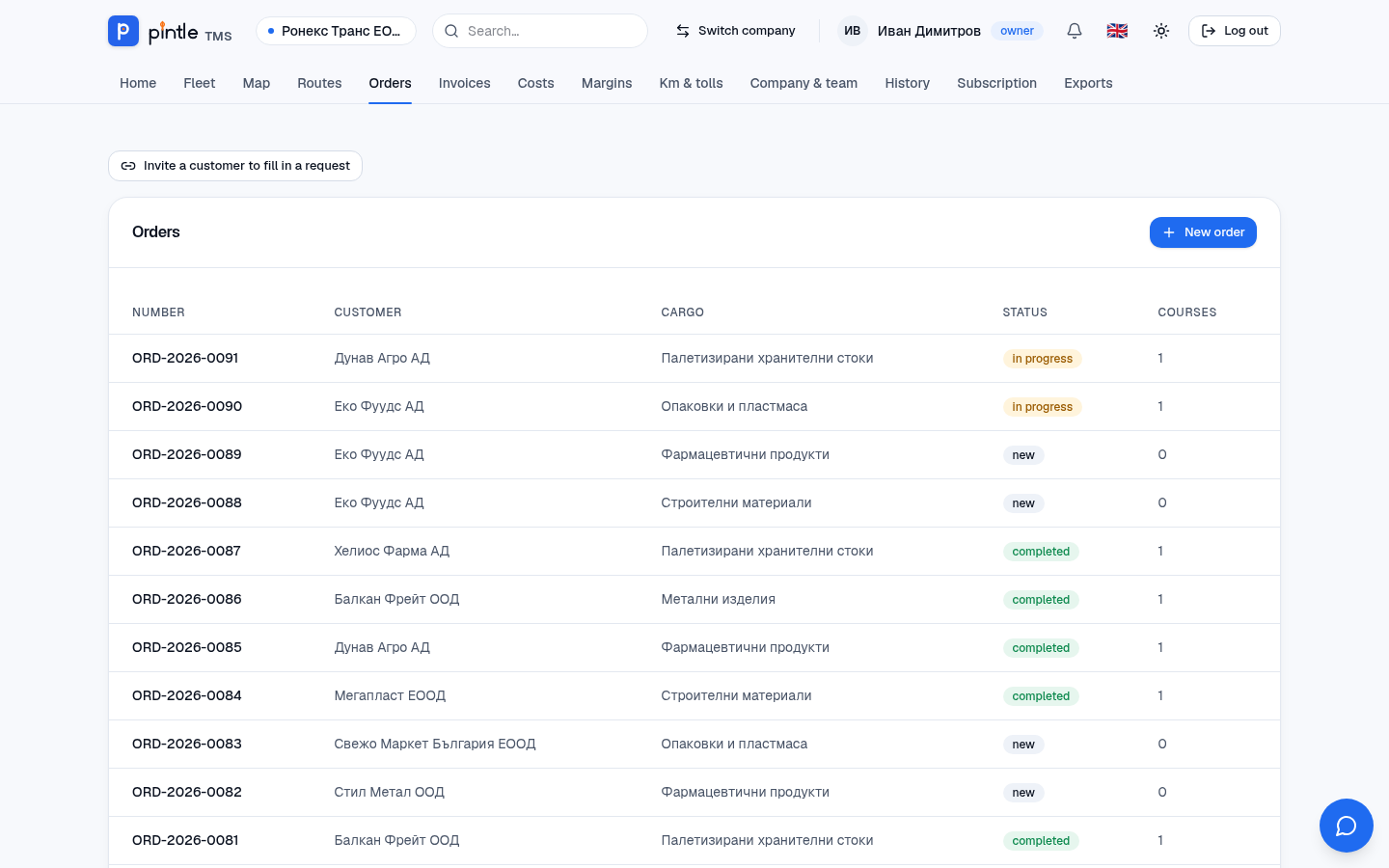
A new order
Section titled “A new order”-
In Orders press New order.
-
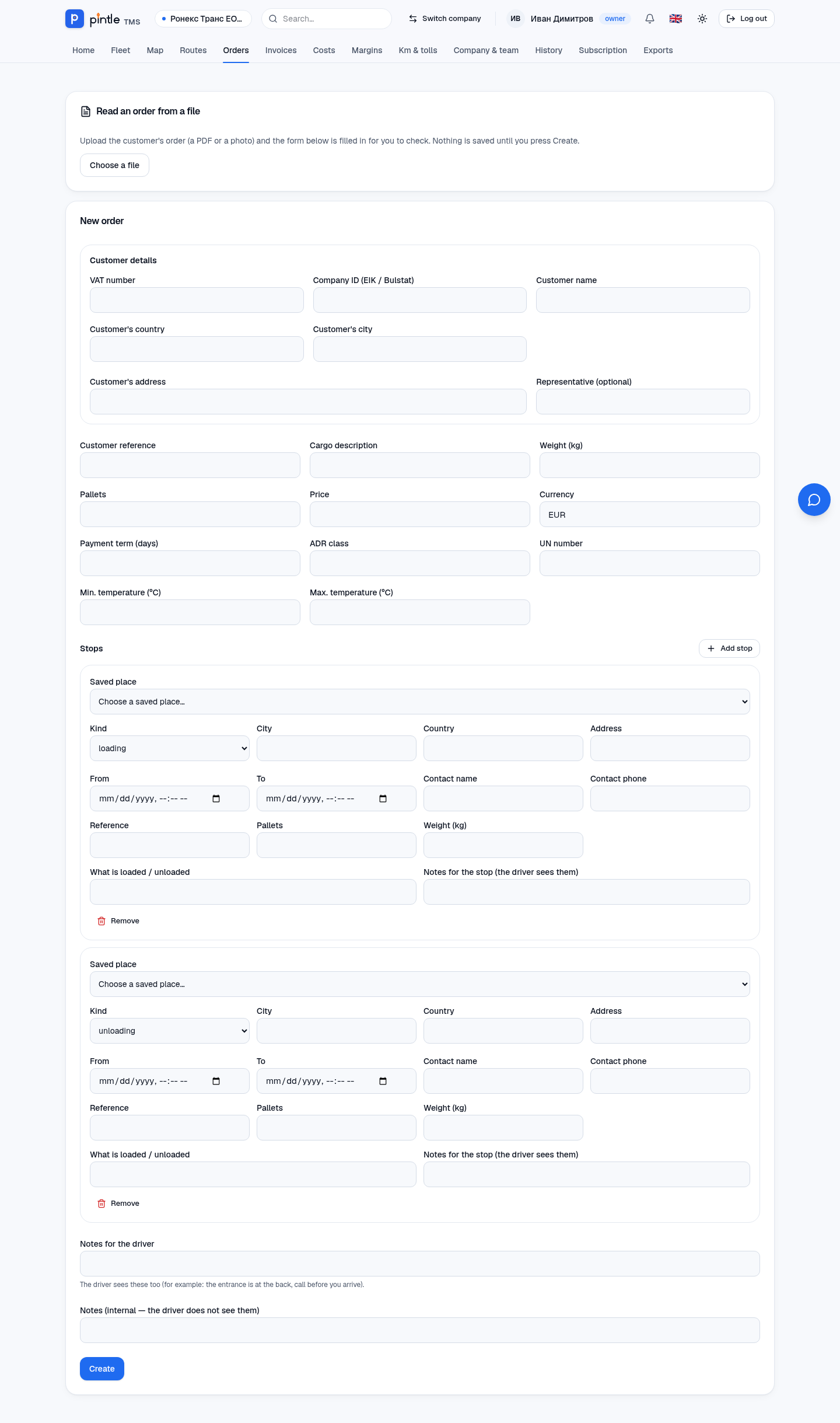
Customer. Start typing the name — the system suggests companies from the register, from your invoices and from earlier orders. A company ID or VAT number can also be checked in VIES. The customer’s details (company ID, VAT, address, representative) fill in by themselves.
-
Cargo and price. Description, weight, pallets, the agreed price and currency, the customer’s reference and notes for the driver.
-
Stops. Add at least a loading and an unloading. For each: country, city, address, a time window from/to and a contact. The address can be picked from the saved places. For groupage every stop has its own pallets, weight and goods.
-
Save the order. It gets a number such as
ORD-2026-0001.
Reading an order from a file
Section titled “Reading an order from a file”The fastest way: do not retype the order. At the top of the form, in the Read an order from a file block, choose a PDF or a photo of the customer’s request. A few seconds later the form is filled in: customer, cargo, price, payment term, the stops with addresses and times, the notes for the driver.
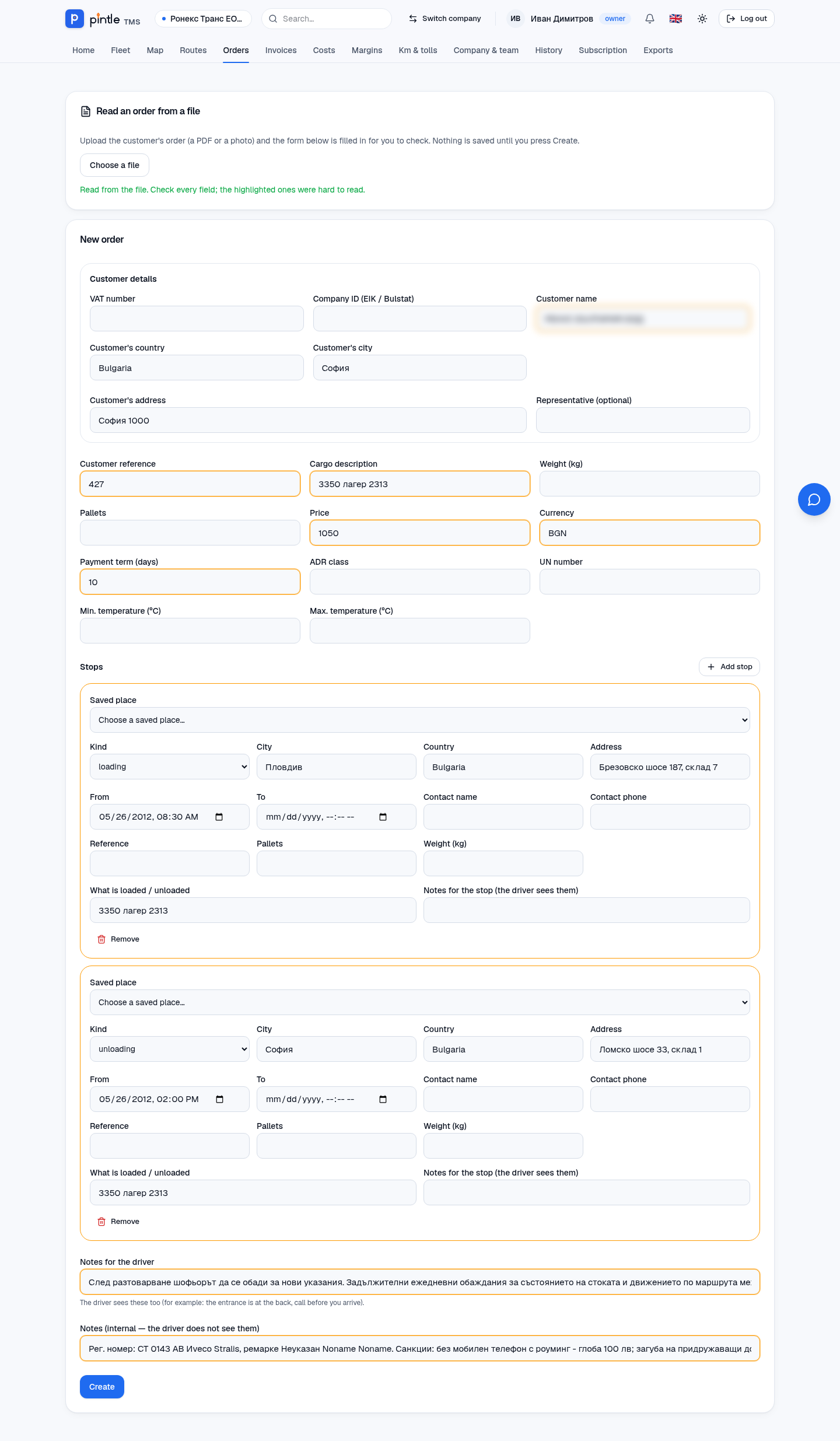
- The fields filled in by the reading are marked in orange — check them.
- The notes for the driver and the internal notes (e.g. the truck’s plate, conditions, penalties) are sorted automatically: those for the driver are visible to the driver, the internal ones are not.
- Nothing is saved until you press Create. You can correct any field.
- It works with Bulgarian, English and other orders, with a PDF and with a photo from a phone.
The order’s page
Section titled “The order’s page”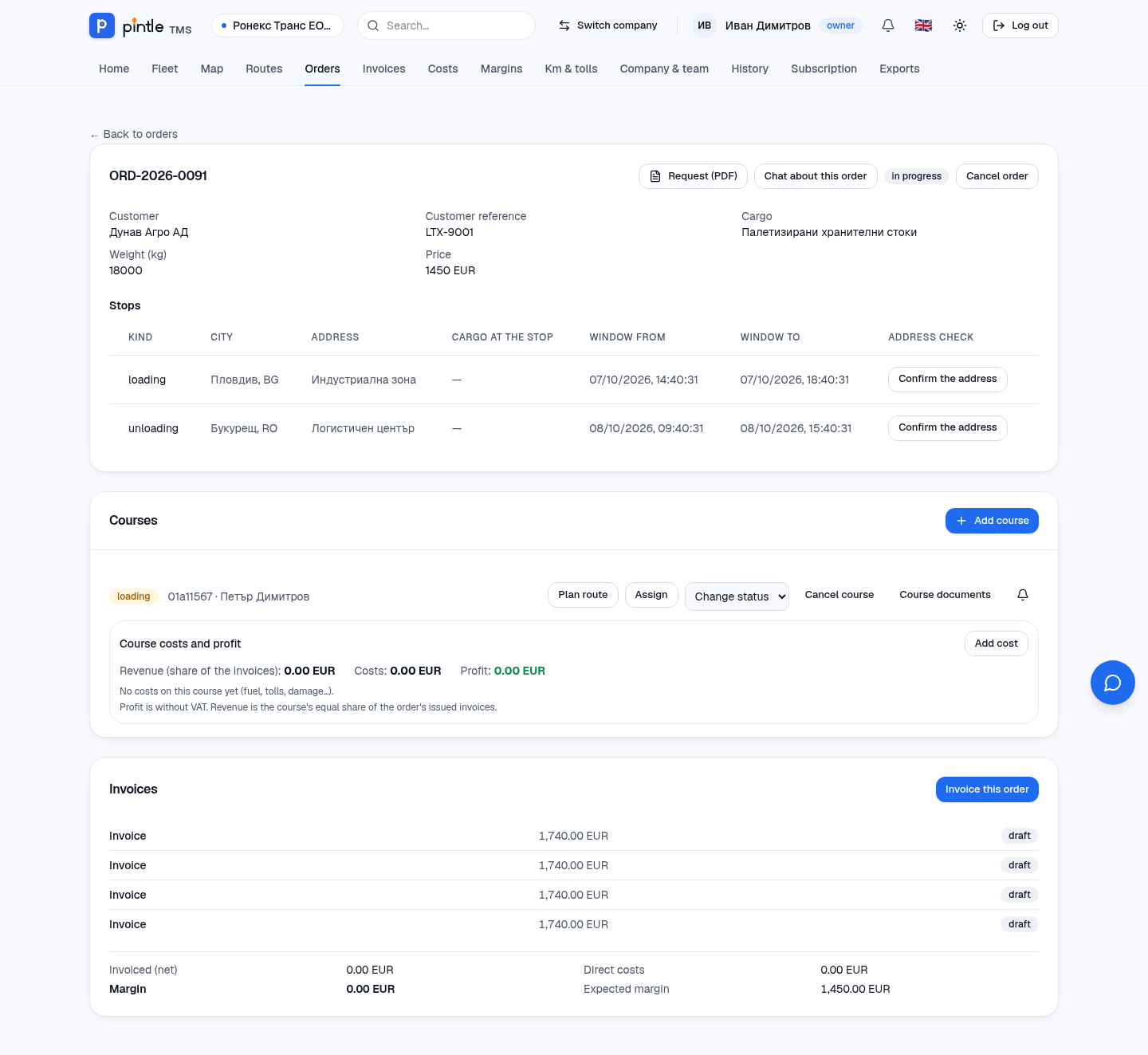
At the top you see the customer, the cargo and the price. The buttons at the top right:
- Request (PDF) — a transport request on the company’s letterhead. For a course with a subcontractor there is a separate Request to the carrier.
- Chat about this order — a team conversation tied to the order.
- Cancel order — cancels it (with a confirmation).
A course: assigning and statuses
Section titled “A course: assigning and statuses”- In the Courses block press Add course.
- Choose a Truck (or a trailer) and a Driver — or fill in a Subcontractor with the price of the subcontract (and its currency). A course is either your own (truck and driver) or a subcontractor’s — not both.
- If you wish, add Notes and press Create.
- The course is created with the status assigned. The driver sees it at once in their app.
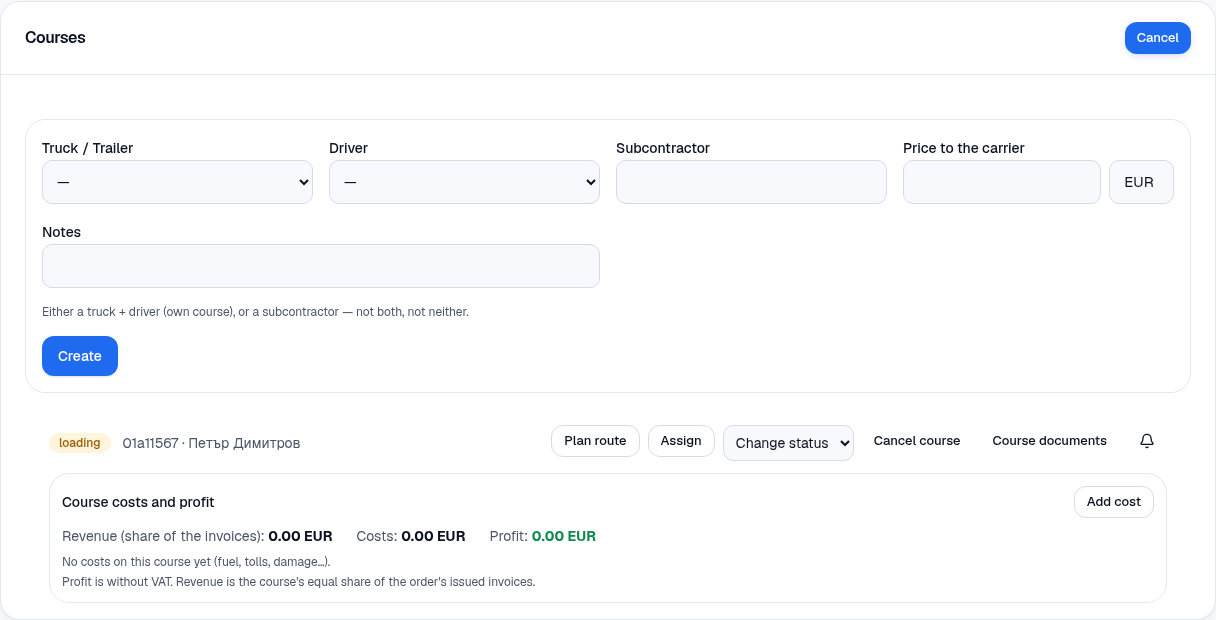
A course goes through these stages: planned → assigned → loading → on the road → unloading → delivered → completed (or cancelled). The driver presses the button for the next stage on their phone; the office can change the status from the Change status list. Every change is recorded with the time and the position.
Addresses are confirmed
Section titled “Addresses are confirmed”When the driver marks loading or unloading, the system asks: “Was the address correct?” If the truck is near the address (within 300 metres), it is confirmed by itself. A correct address is saved as a place and the next order suggests it. You can also confirm an address by hand with Confirm the address next to the stop.
More actions on a course
Section titled “More actions on a course”- Plan route — opens the truck route planner with the stops already filled in (Routes).
- Assign — change the truck or the driver.
- Course documents — CMR, T1/T2, delivery note (Course documents).
- Add cost — fuel, tolls, damage tied to the course. You choose a category and enter the amount, the VAT (if it is recoverable), currency, date, seller and a note. The Course costs and profit block then shows income, costs and profit at once (Expenses and margins).
- The bell — “Notify me on a new document” for the course.
- Invoice this order — starts an invoice from the order (Invoices).
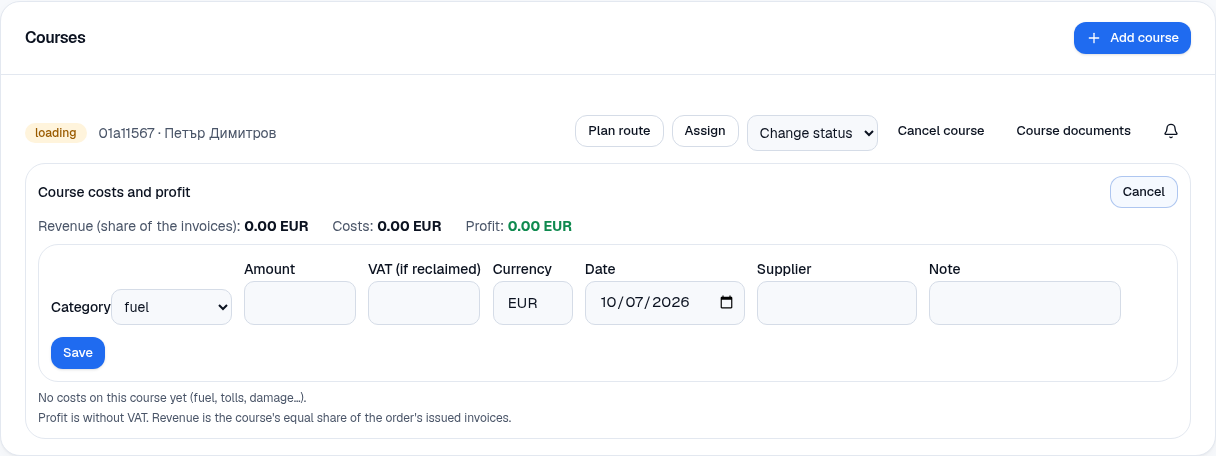
The state of the order follows its courses: new, in progress, completed.