
Android and the desktop app
Besides in the browser, Pintle TMS works as an application. All versions show the same data — whatever you change in one is seen in the others at once.
The Android app
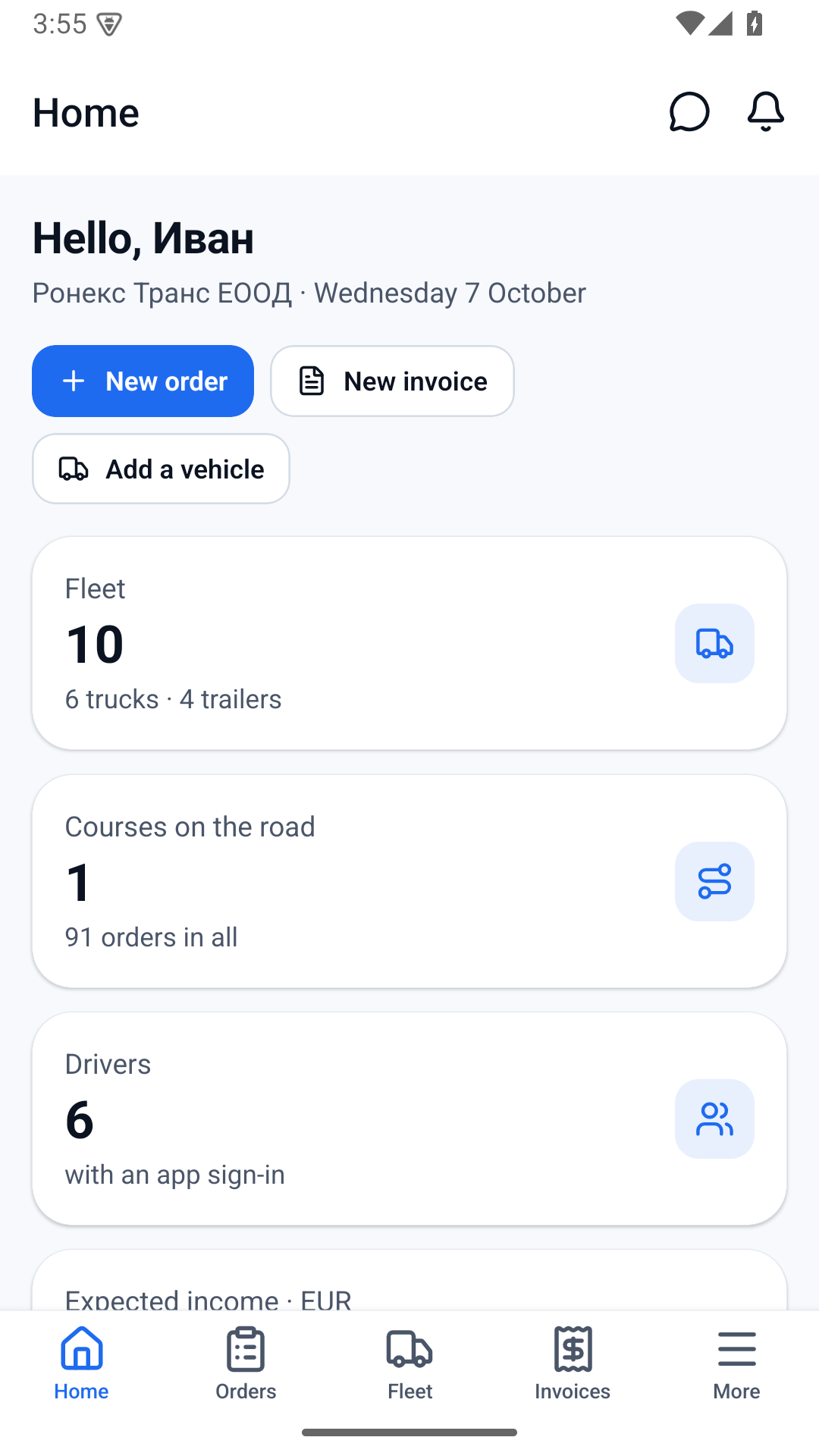
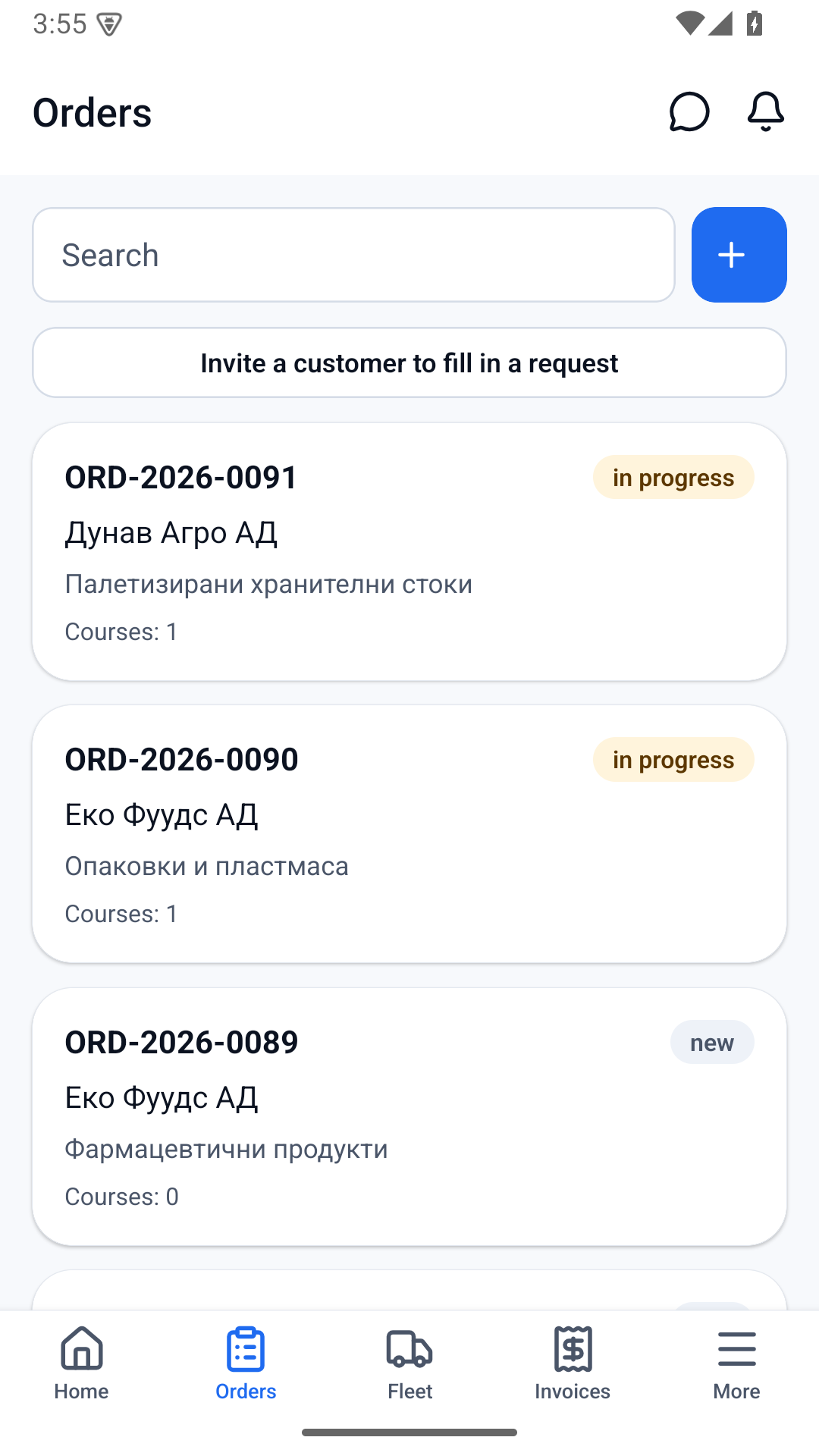
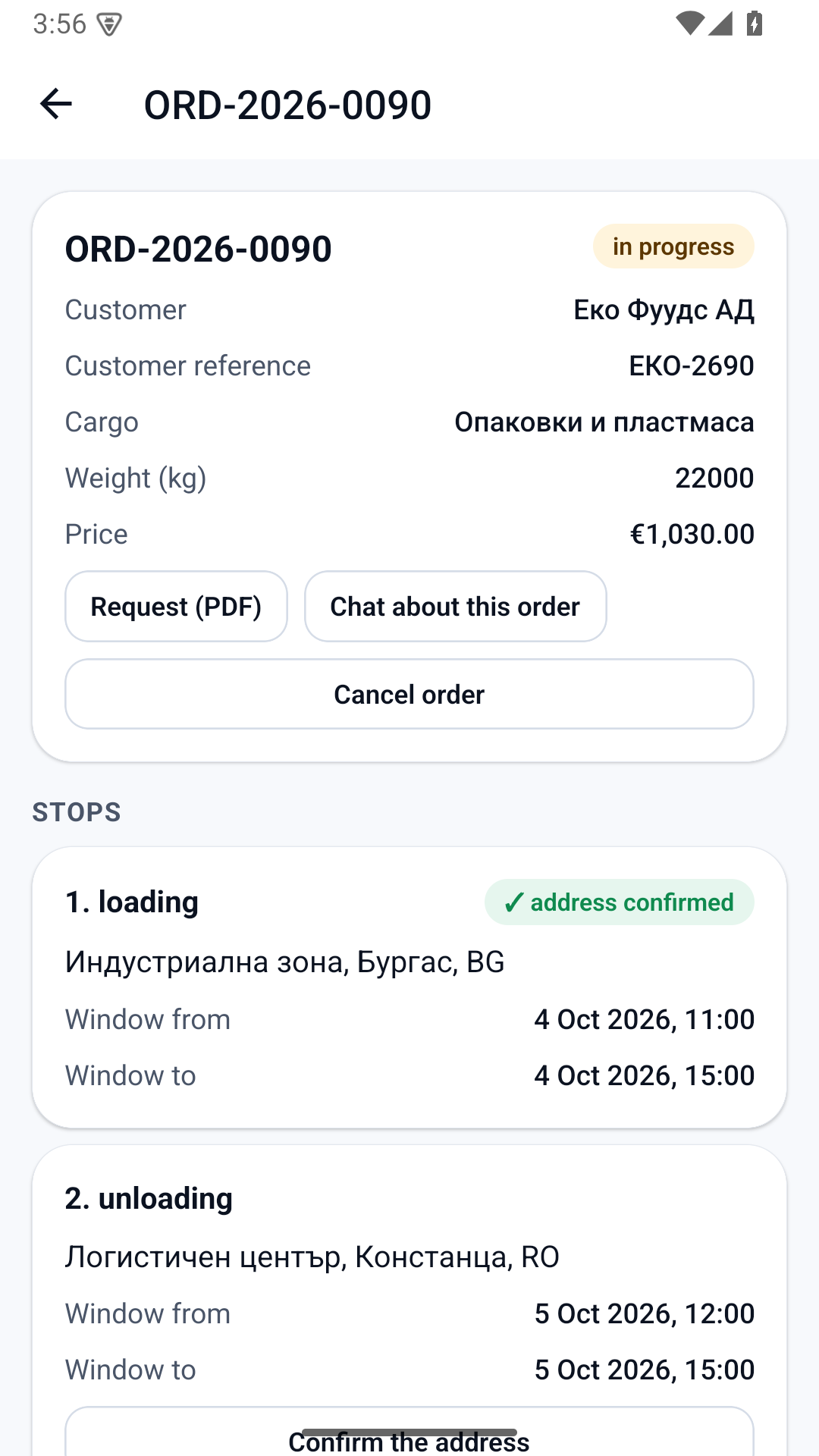
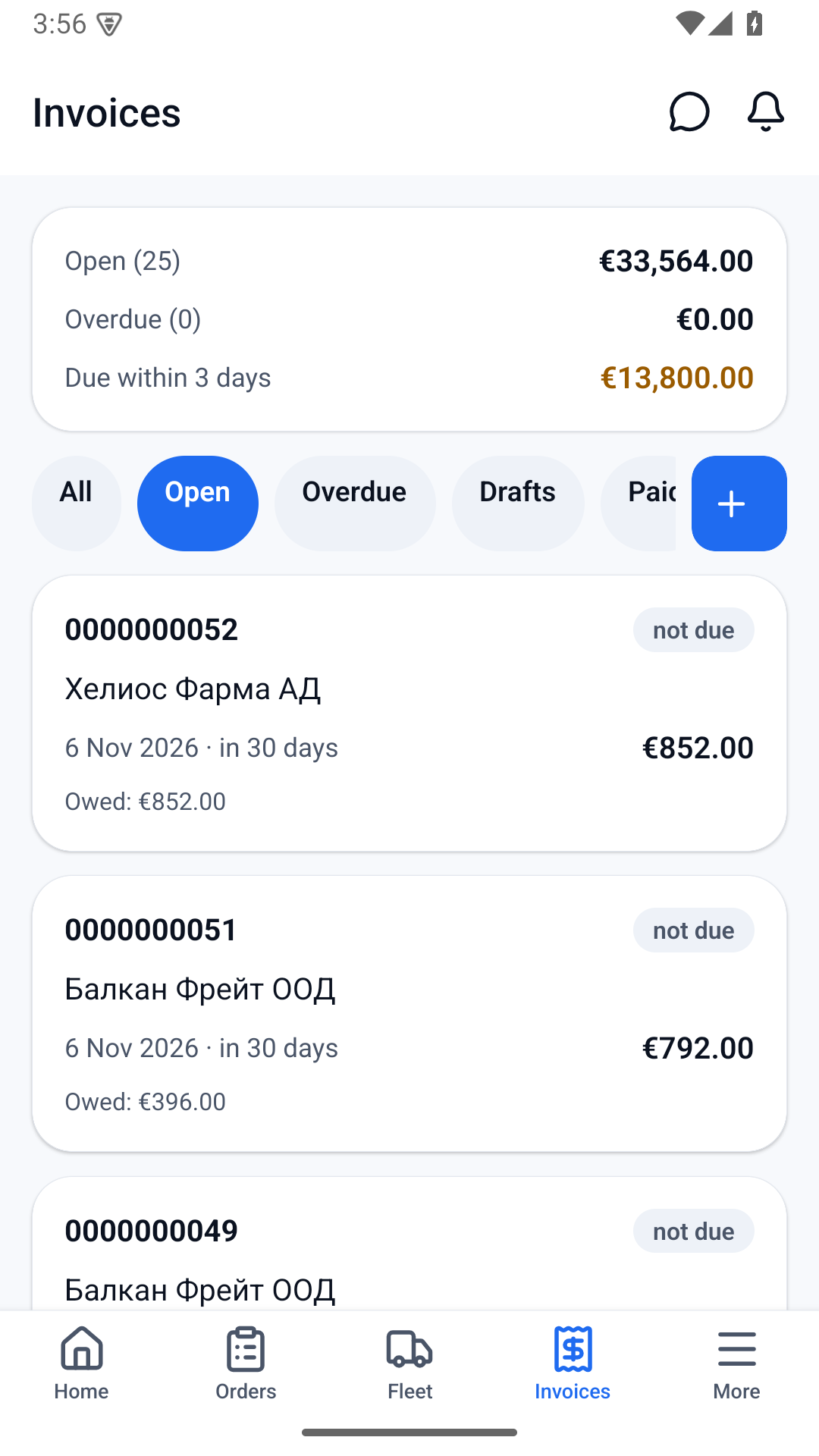
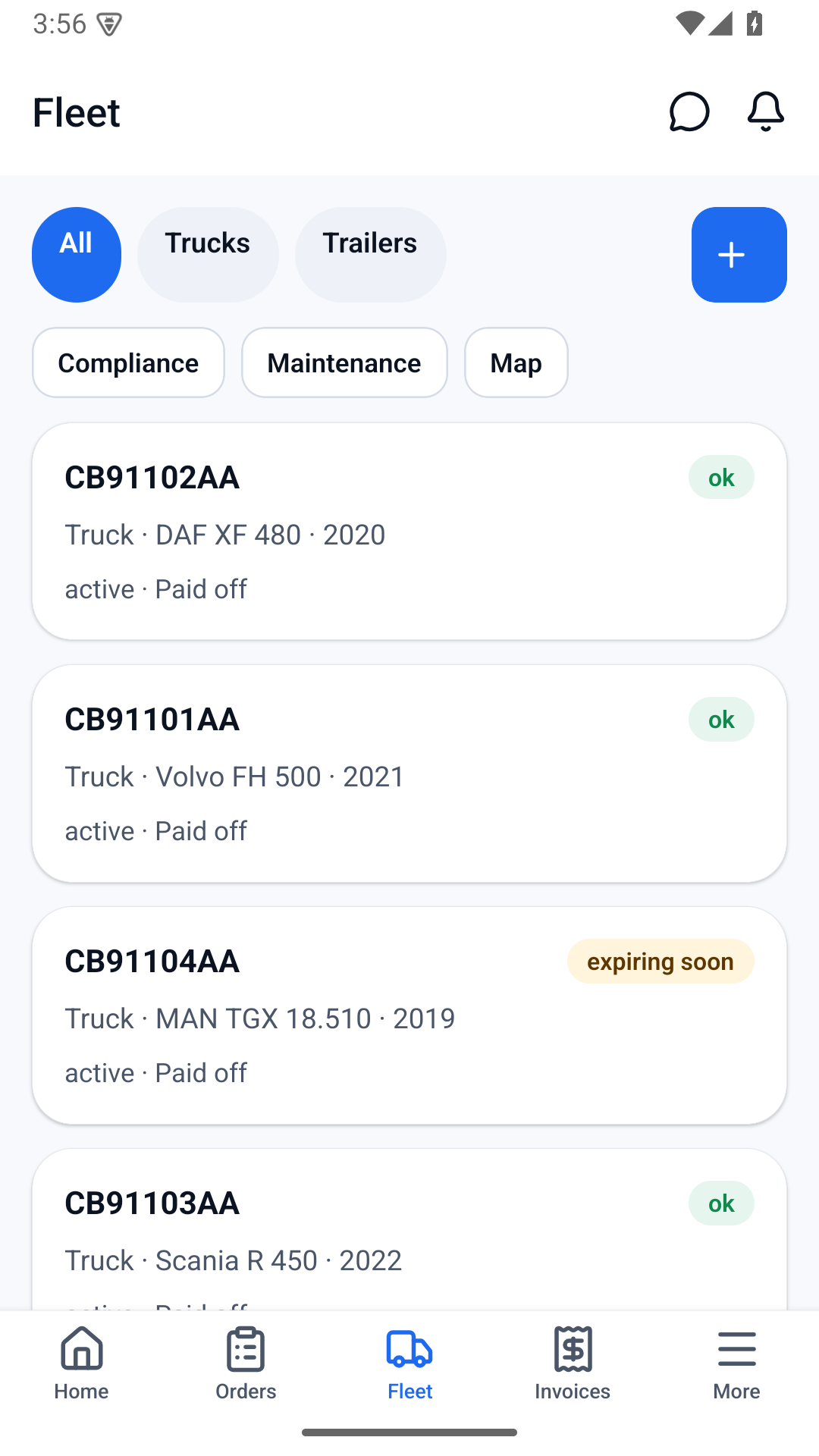
Section titled “The Android app”The app is for all roles. Drivers work mostly in it; for the office it repeats the web version: orders, fleet, invoices, costs, margins, reports, routes and the map, messages, notifications and the administration of the company.
Installing
Section titled “Installing”- You receive an installation file (
.apk) from us. - Open it on the phone. Android will ask for permission to install from this source — allow it.
- Install and open Pintle TMS.
- Sign in: staff with an e-mail and a password, drivers with a phone and an SMS code (“I’m a driver — sign in with my phone”).
Settings
Section titled “Settings”- Theme: light, dark or following the phone — the button is next to the language choice and in More.
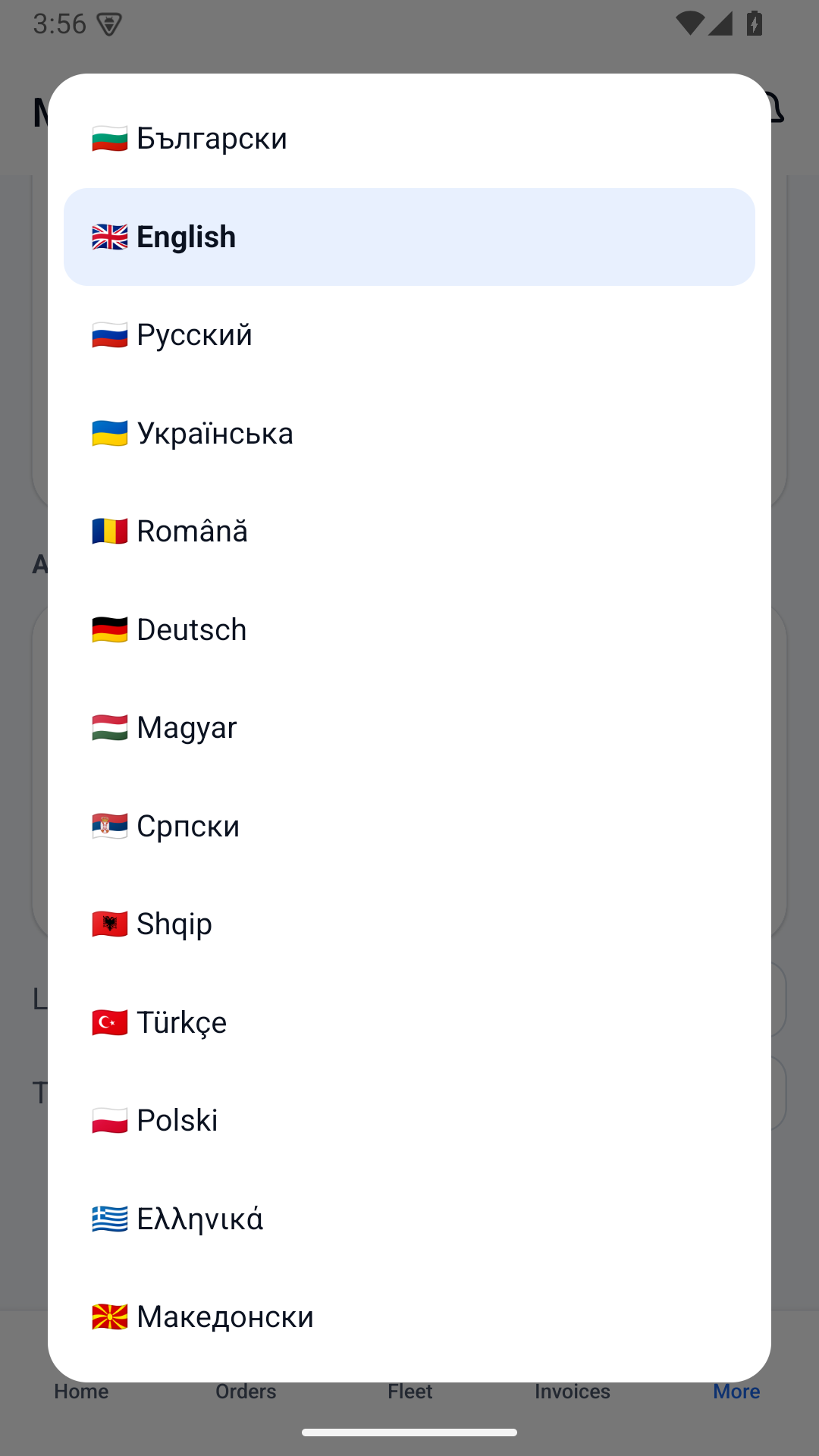
- Language: one of 13, from More (and on the sign-in screen).
- Permissions: location (only when you press a status button or an address confirmation) and the camera (for photos of documents).
The desktop app
Section titled “The desktop app”A window of its own for Pintle TMS for Windows, Linux (Debian/Ubuntu) and macOS, with an icon in the system tray, a remembered window size and a “No connection” page if the internet drops. It shows the web version, so it is always up to date.
- Linux (Debian, Ubuntu, Kali):
sudo apt install ./pintle-tms_*.debor start the.AppImagefile without installing. - Windows: run
Pintle TMS Setup *.exe. Windows may show “unknown publisher” — that is expected until the installer is signed. - macOS: open the
.dmgand move the application to Applications; on the first start choose Open from the right-click menu.