Messages, notifications and search
Messages
Section titled “Messages”The round blue button at the bottom right opens Messages.
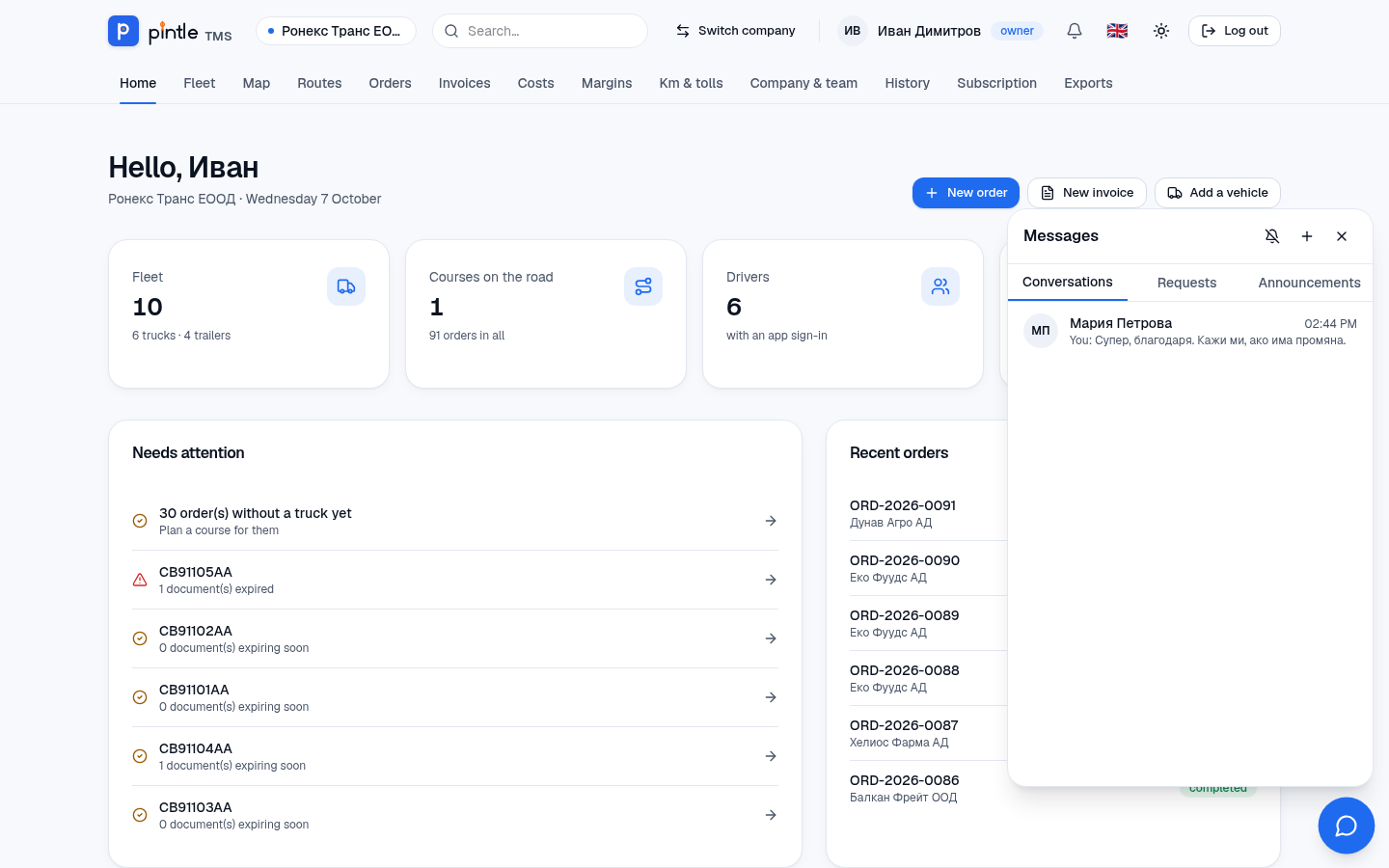
- Conversations — a personal conversation with a colleague, or a group one. With + you start a new conversation or group (with or without history for the new members).
- Requests — requests for a conversation from people outside your company. You can accept them, ignore them (without any notice) or block the sender.
- Notifications — messages to the whole team from the owner or from the platform. Important ones stay as a bar until they have been read.
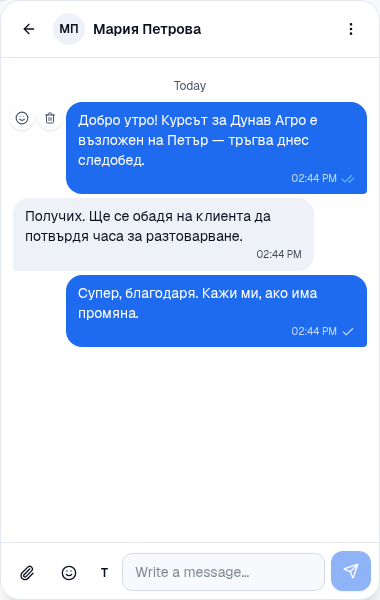
Conversations support files, emoji and reactions, and show who is online and when a message was read. The Chat about this order button on the order’s page opens a conversation tied to it.
A conversation with people in other companies
Section titled “A conversation with people in other companies”- In + choose Other companies.
- Search for a company by name, company ID or VAT number (at least 3 characters) and choose a person in it.
- Write a first message (text only, no links or files) and send a request. Until they accept it, the recipient can only read it.
- Partner companies write to one another at once, without a request.
The owner sets this up in Company & team → Messages between companies: whether the company is shown in the search, which roles strangers may write to and which ones partners may, and which companies are partners. Drivers talk only with their colleagues inside the company.
A message to the team
Section titled “A message to the team”In Company & team → Message to the team the owner writes to chosen roles (or to everyone): a title, a text, a file if wished, important (stays until it has been read) and a time to send it later.
Notifications
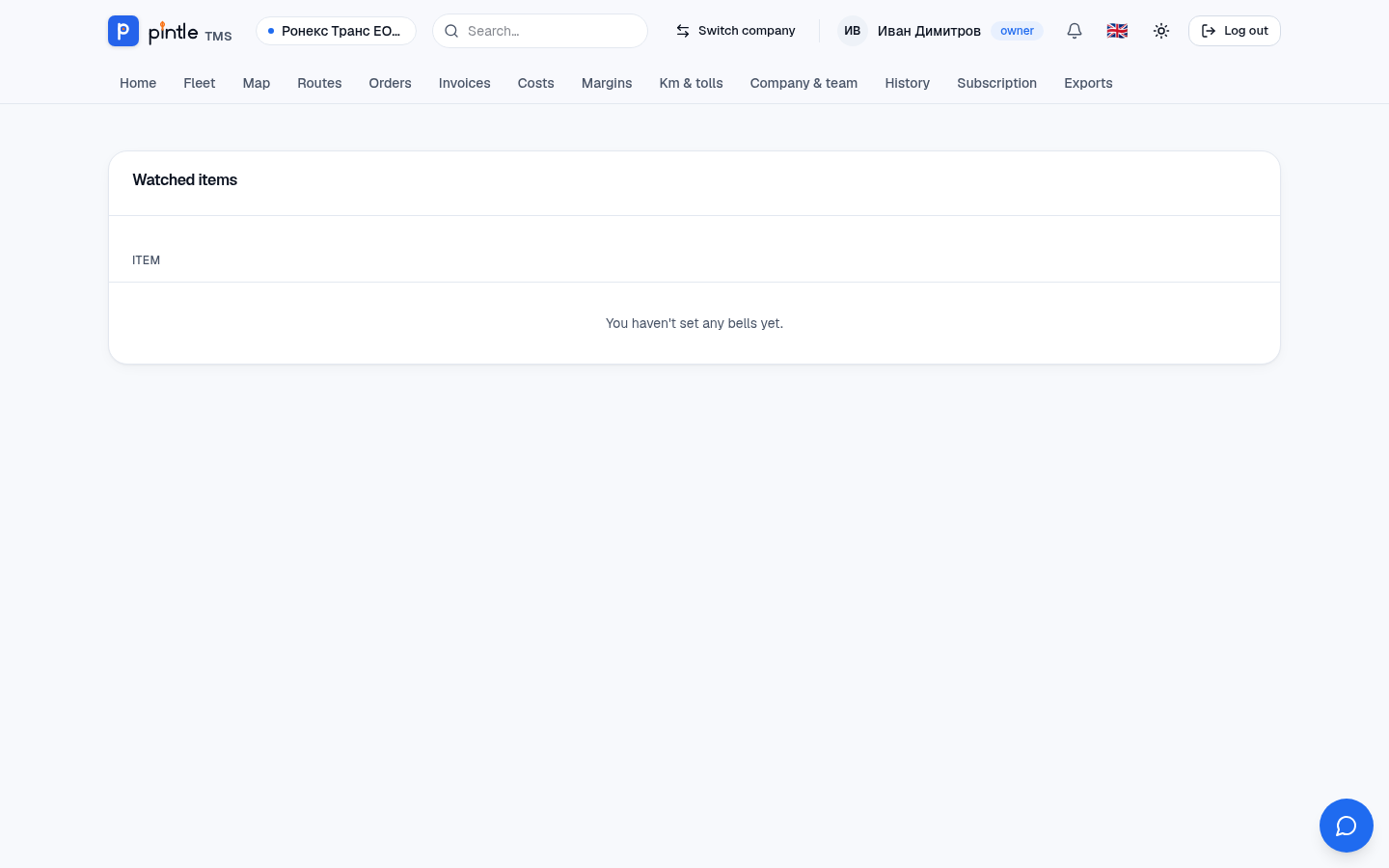
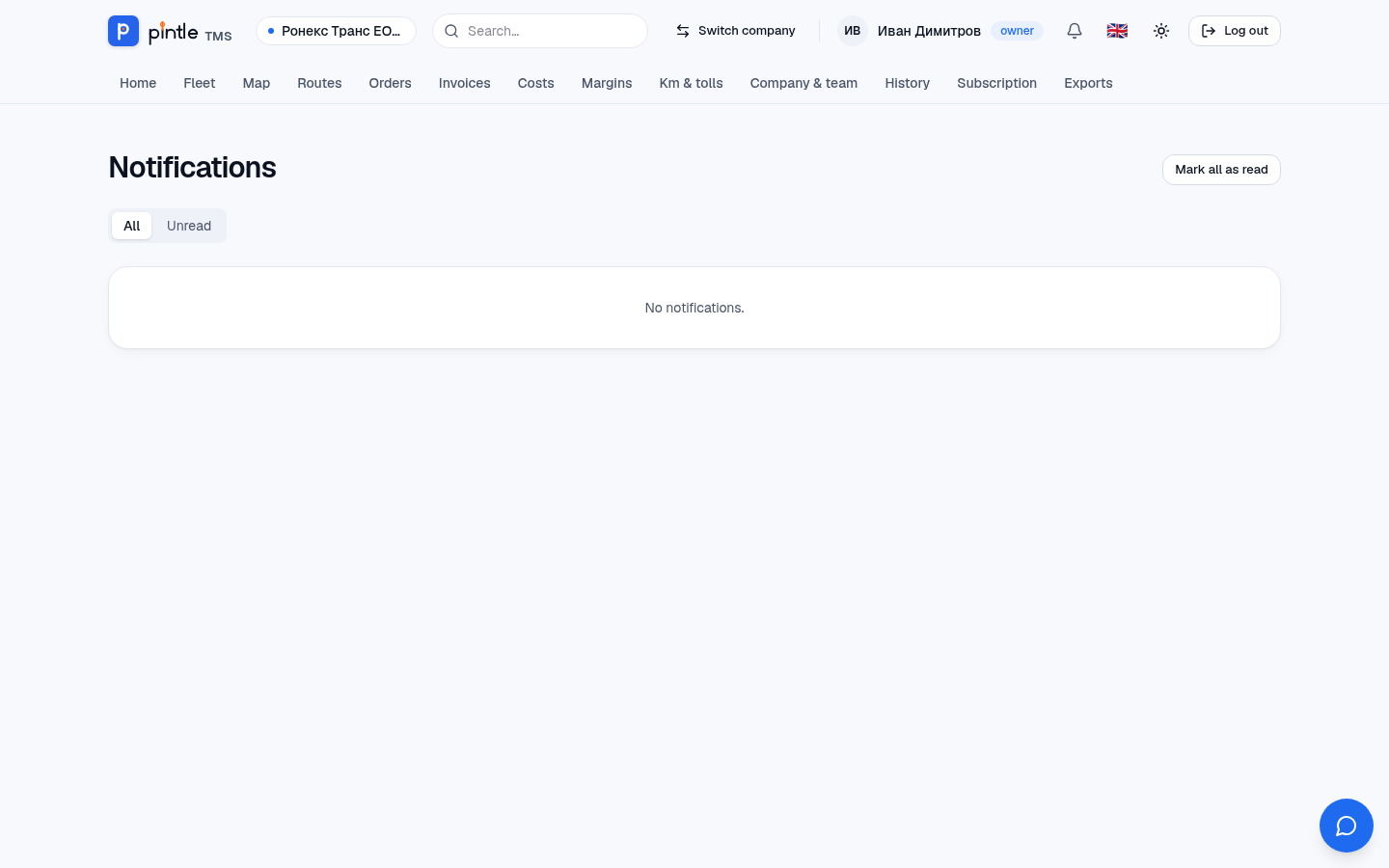
Section titled “Notifications”The bell at the top shows: documents about to expire, overdue invoices, new documents on courses, requests for a conversation. Every notification leads to what it is about. See all opens the whole list with the filters All / Unread and Mark all as read. With the bell next to a course or a vehicle (“Notify me…”) you follow a particular object. Everything you follow is in Watched items (from the notifications page): that is where you stop following.
If you allow notifications in the browser, you get a push notification for a message when the application is closed. The paid plans also get an e-mail for messages left unread for more than 30 minutes.
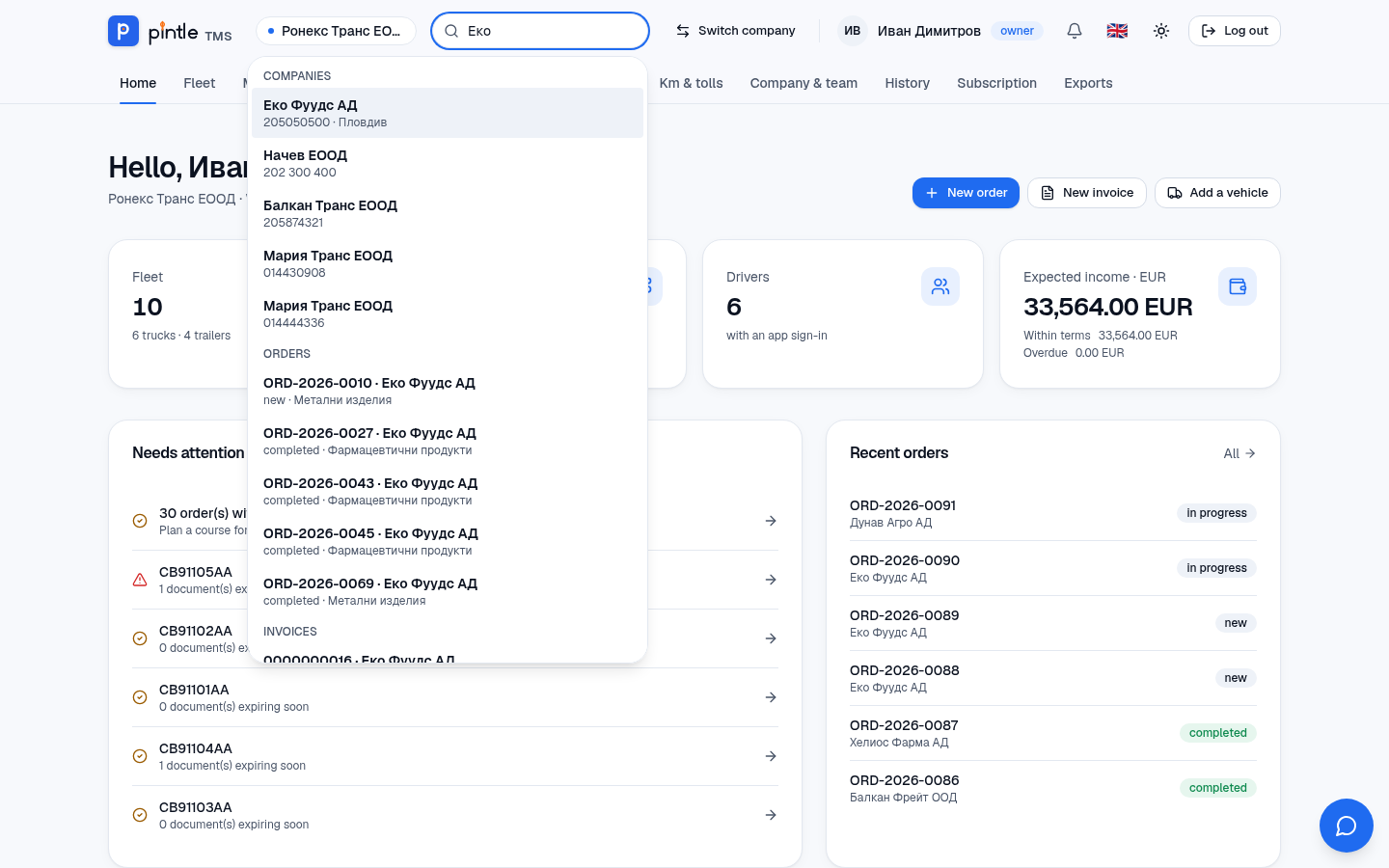
Search
Section titled “Search”The Search… box at the top (or Ctrl + K / Cmd + K) searches at once in orders, invoices, customers, vehicles, trailers, drivers, places and messages. Start typing — the results are grouped by kind, and Enter or a click opens the chosen one. Search shows only what you are allowed to see.