A customer's request by link
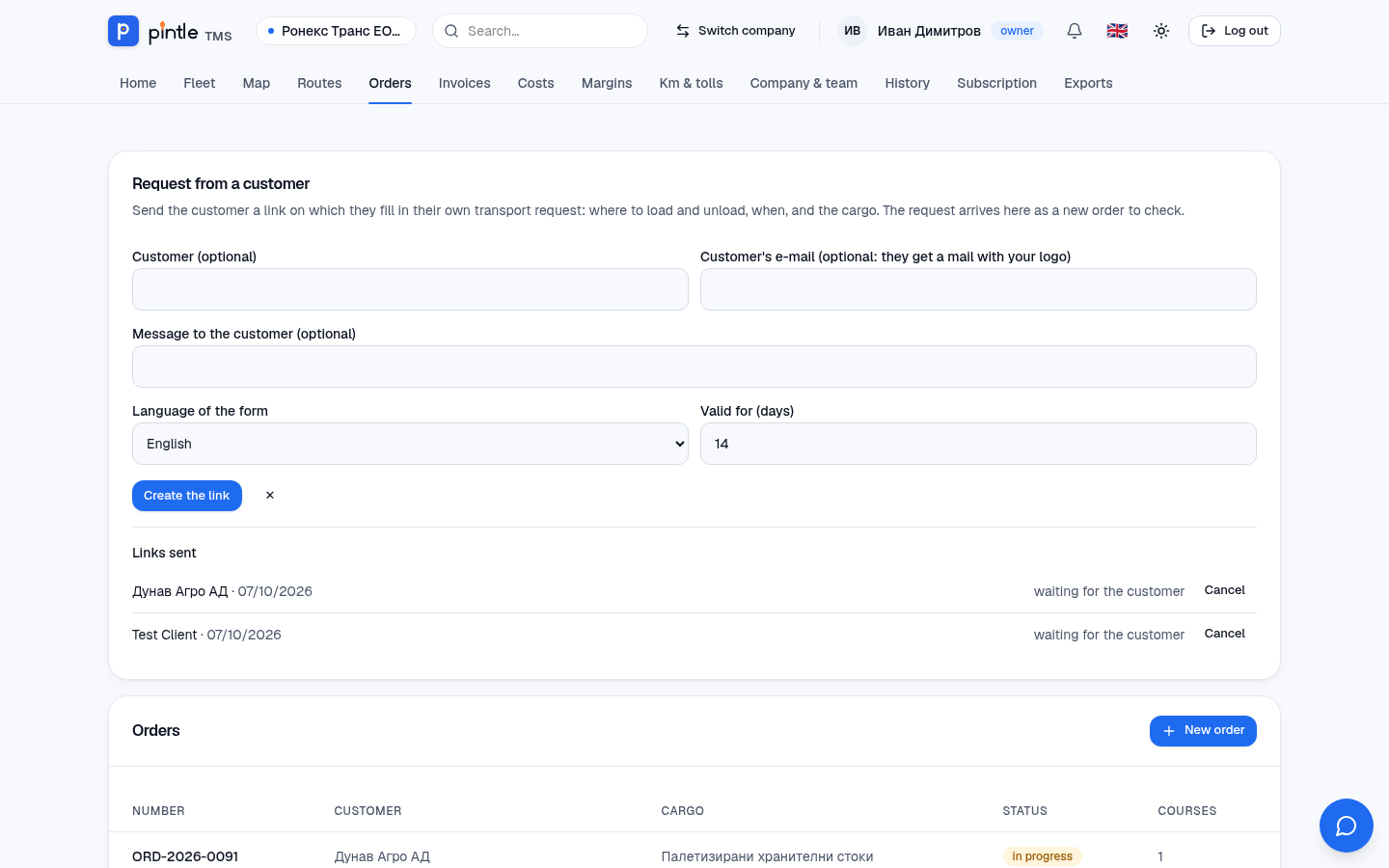
Instead of retyping requests from e-mails and messages, send the customer a link. They open a page with your company’s logo and colour, fill in where to load and unload, when and what the cargo is — and the request reaches you as a new order to check.
How a link is created
Section titled “How a link is created”- In Orders press Invite a customer to fill in a request.
- If you wish, enter the customer’s name and e-mail. With an e-mail they get a message with your logo and the link.
- Choose the language of the form (Bulgarian or English) and how many days it is valid for.
- Press Create the link. Copy it with Copy and send it through whatever channel you like.
What the customer sees
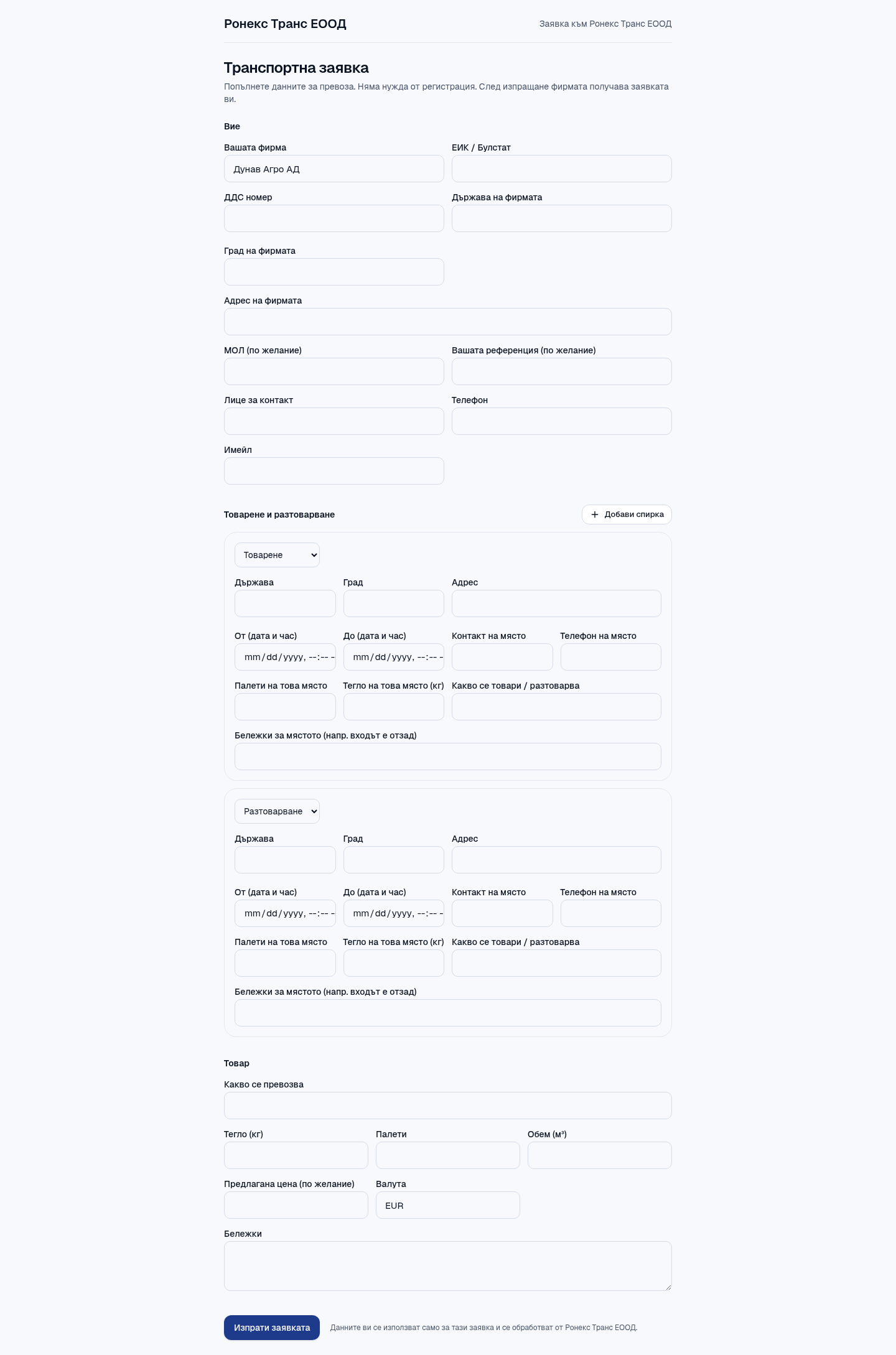
Section titled “What the customer sees”The customer opens the link and sees a Transport request page with your company’s logo and colour. They fill in their own details, the stops (where to load and unload, and when), the cargo and their wishes, and send it.
What happens next
Section titled “What happens next”- The link works once and expires after the set number of days.
- The filled-in request becomes an order marked from customer. You check it, add the price and add a course.
- The customer can download a PDF copy of their request.
- You receive an e-mail that a request has arrived.
In the Links sent list you see the state of each: waiting for the customer, filled in, cancelled, expired. An unused link can be cancelled with Cancel.
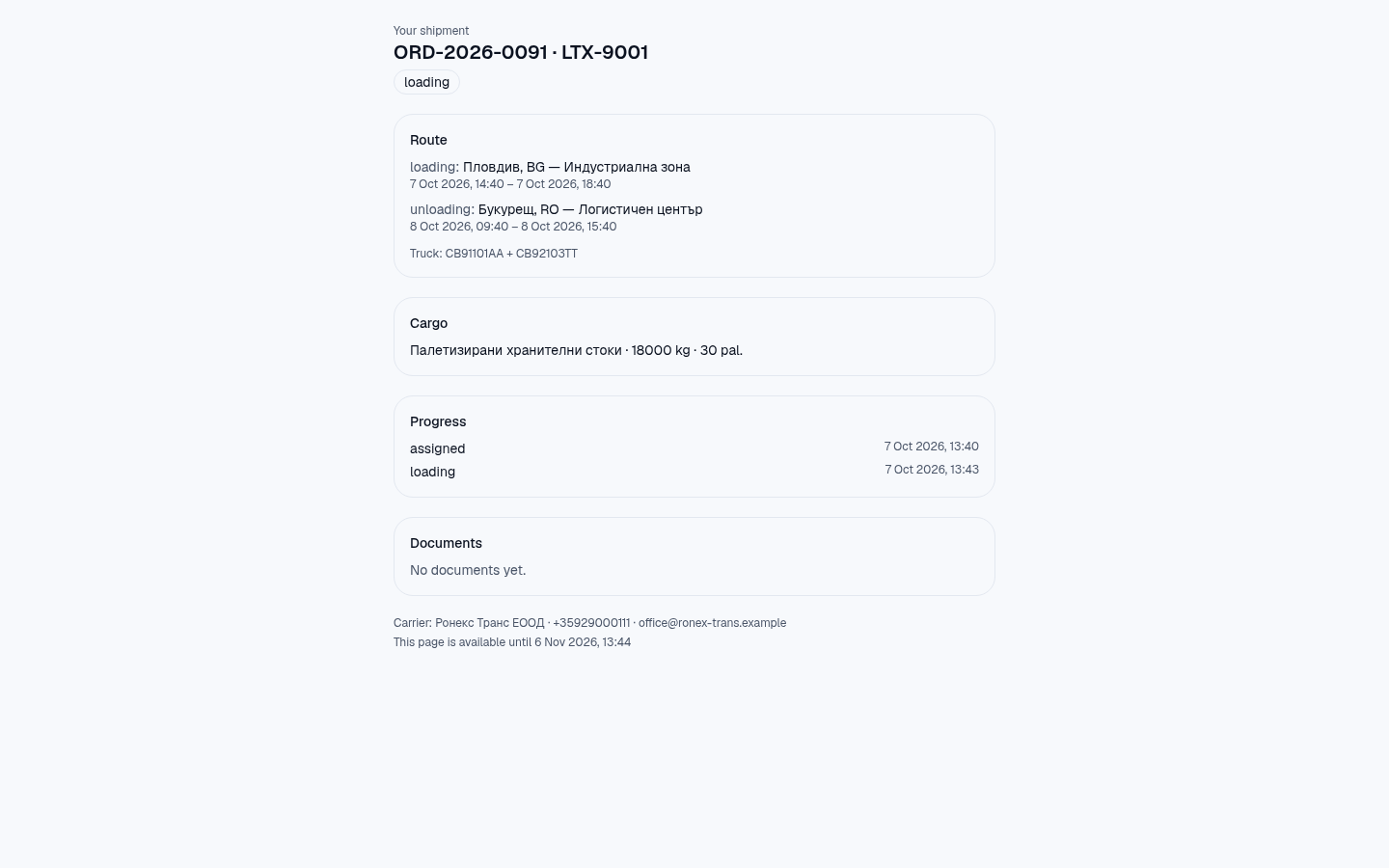
Following a course by the customer
Section titled “Following a course by the customer”For a course you can also create a tracking link. The customer sees the course’s route, cargo, stage and documents — without prices and without the driver’s details — and does not need an account. The link is created in Course documents (the Share with the customer block): enter who it is for and for how many days it is valid, and press Create link; with Cancel it stops working at once.