
Invoices and receivables
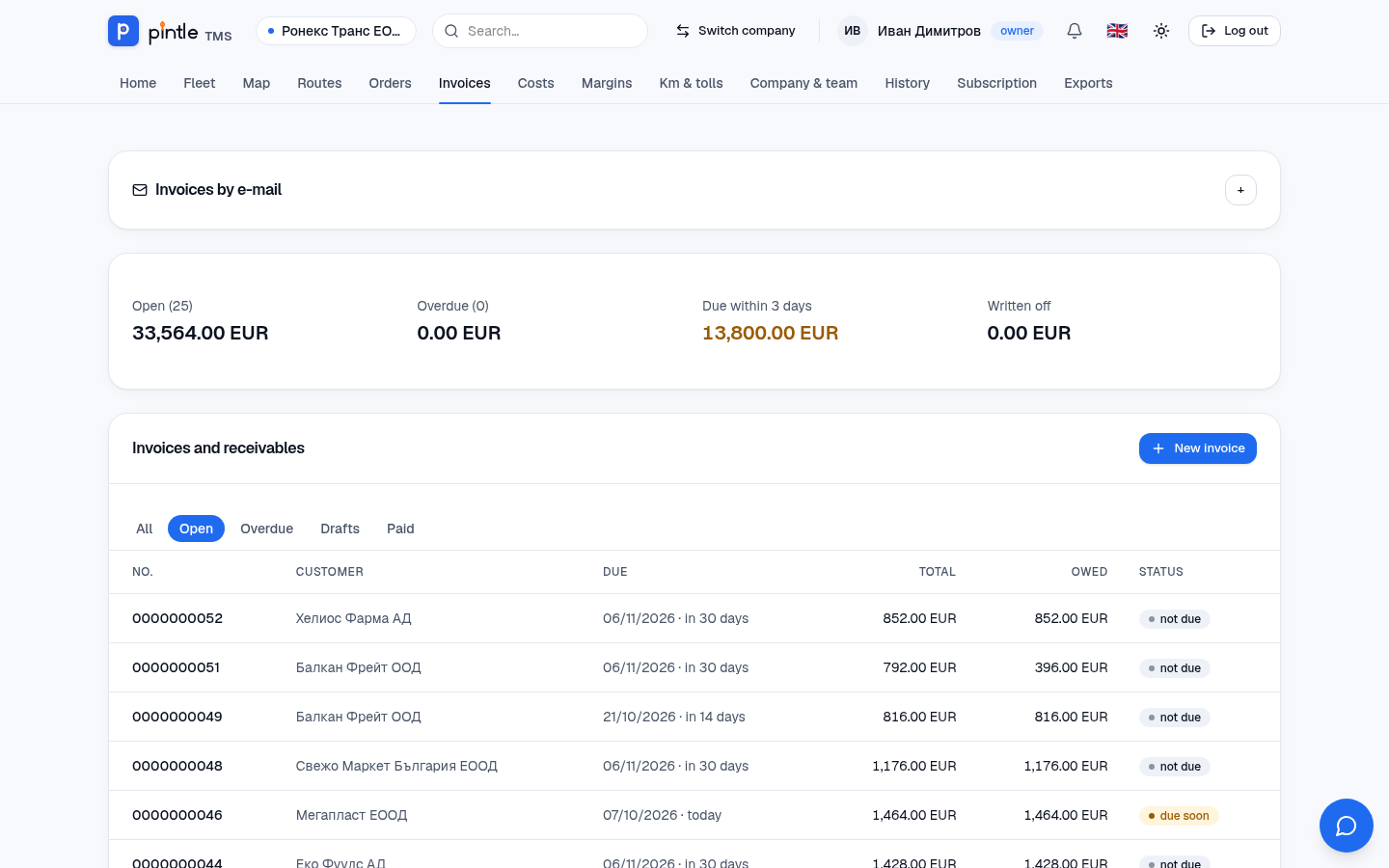
The overview
Section titled “The overview”The Invoices menu starts with four totals: Open, Overdue, Due within 3 days and Paid. Below them are the tables with the filters All / Open / Overdue / Drafts / Paid. The Status column shows by colour whether the invoice is within its term or overdue, and by how many days.
A new invoice
Section titled “A new invoice”- The easiest way: from the order’s page press Invoice this order. The invoice is created as a draft with the customer’s details, the route, the price and the payment term from the order.
- Or from Invoices → New invoice: choose the Document (Invoice or Proforma), if you wish an Order from which the customer, route, price and term are filled in, and press Create draft.
- Check the line (description, quantity, unit price) and the customer’s details.
- Issue the invoice. It gets the next number and can no longer be changed.
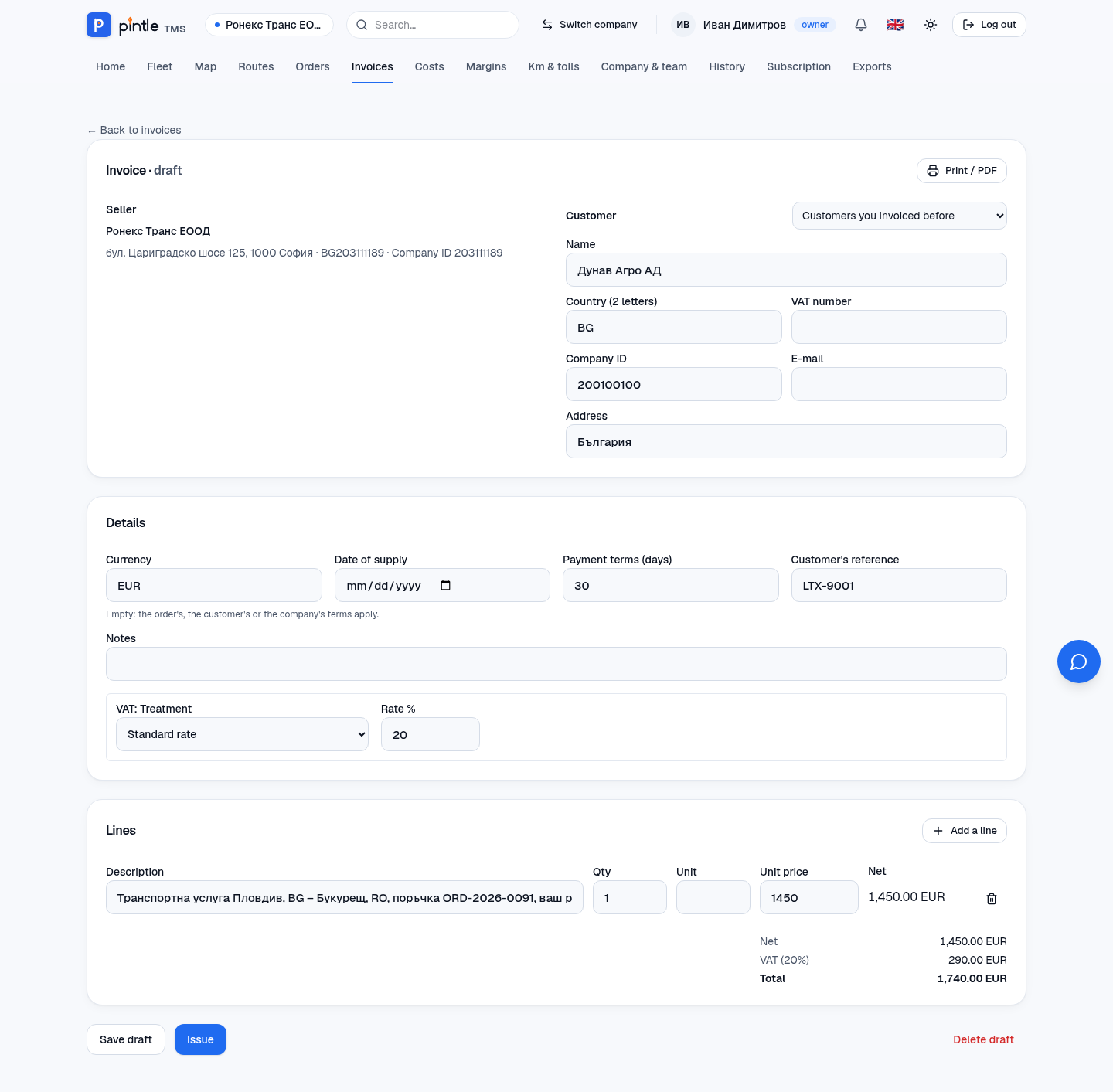
On the draft you edit the dates (issue, tax event date, due date), the VAT mode, the Notes and the lines — with Add a line you add more. While the invoice is a draft you can change or delete it.
The system charges 20% VAT for customers in Bulgaria. For EU customers with a VAT number the reverse charge applies, and the number is checked in VIES. This way you avoid wrongly charged VAT.
An issued invoice
Section titled “An issued invoice”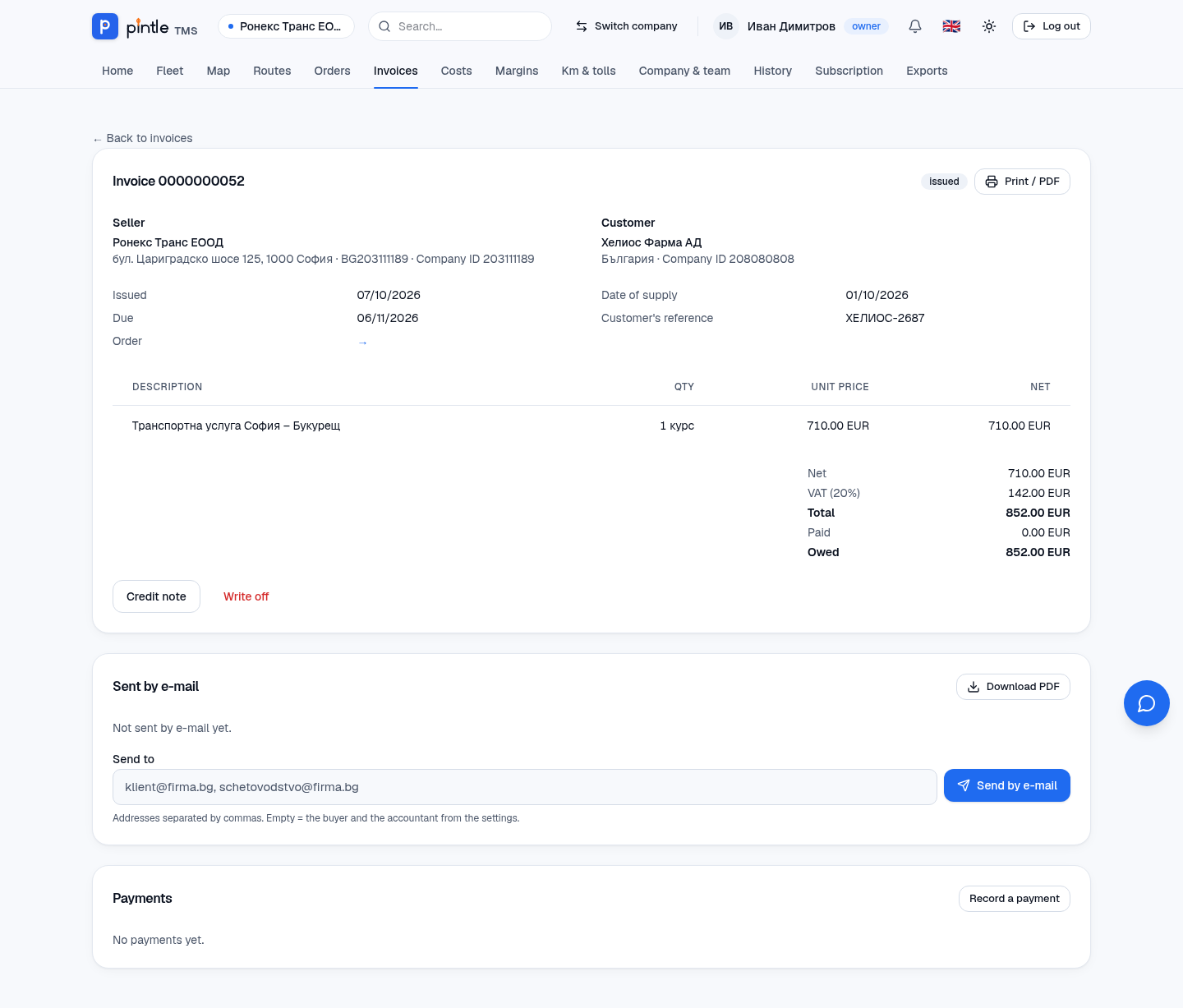
- Print / PDF — download or print.
- Credit note — corrects an issued invoice (a new credit note is issued, the invoice is not deleted).
- Write off — marks a receivable as uncollectable.
- Sent by e-mail — you send the PDF to the customer and a copy to the accountant (see below).
- Payments → Record a payment — notes a received amount: Amount, Date, Method (for example a bank transfer) and a Note. A partial payment leaves a remainder in Owed.

Sending by e-mail
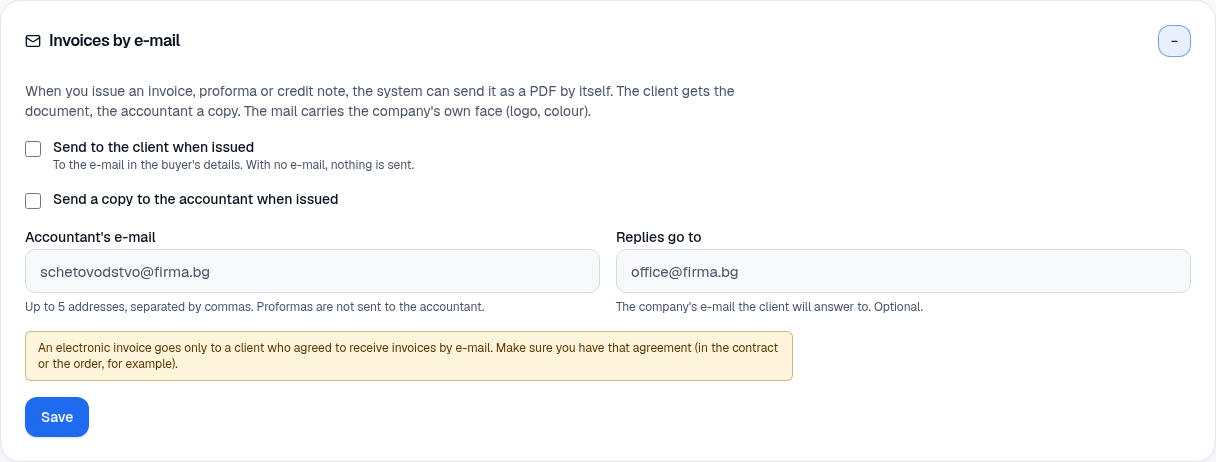
Section titled “Sending by e-mail”The Invoices by e-mail card on the Invoices page (opened with the arrow on the right) turns on automatic sending when a document is issued:
- Send to the client when issued — the invoice, proforma or credit note goes as a PDF to the customer’s e-mail.
- Send a copy to the accountant when issued — up to five addresses in Accountant’s e-mail (proformas are not copied).
- Replies go to — the address the customer answers to.
Everything is off by default. Turn it on when the customer has agreed to receive electronic invoices. Any invoice can also be sent by hand, to chosen addresses, from the Sent by e-mail block.
Proforma
Section titled “Proforma”A proforma is a preliminary document without the numbering of invoices — handy for a prepayment or when the customer wants a document to approve. An invoice is issued from it later.
Overdue receivables
Section titled “Overdue receivables”Invoices whose due date has passed are visible in Overdue and in Needs attention on the home screen. The overdue amount is written in red; invoices due within 3 days — in orange.