
Drivers and their app
The driver does not remember a password and does not hunt for documents in chats: they sign in with their phone, see their courses and press a button at every step.
How a driver is added
Section titled “How a driver is added”- In Company & team → Drivers press Invite a driver and enter a name, a phone number (with the country code, e.g.
+359 88 123 4567) and a language. - The driver gets an SMS with an invitation. The number must be the same one you entered.
- The company can assign the driver to a truck and a course at once.
Signing in
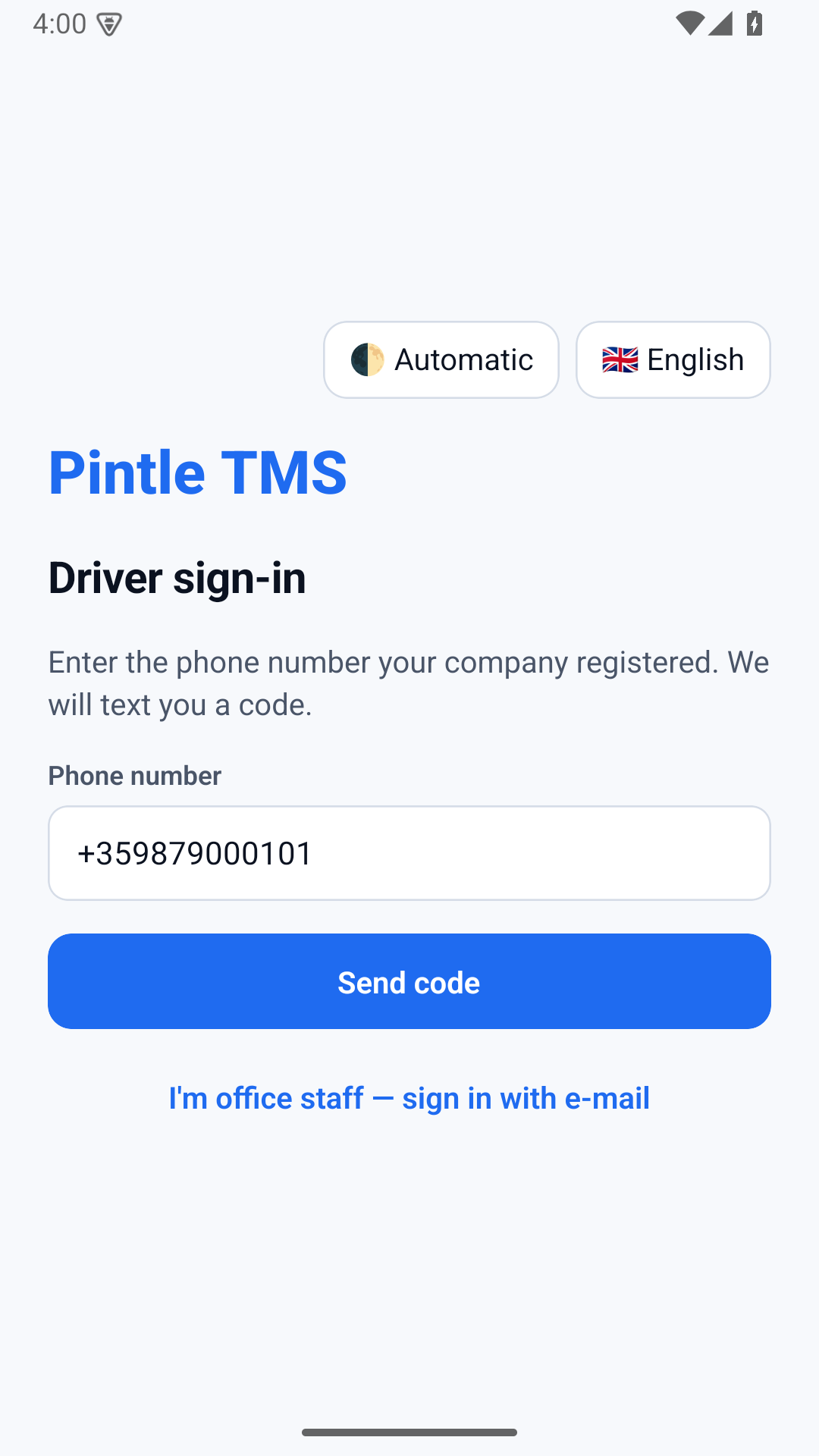
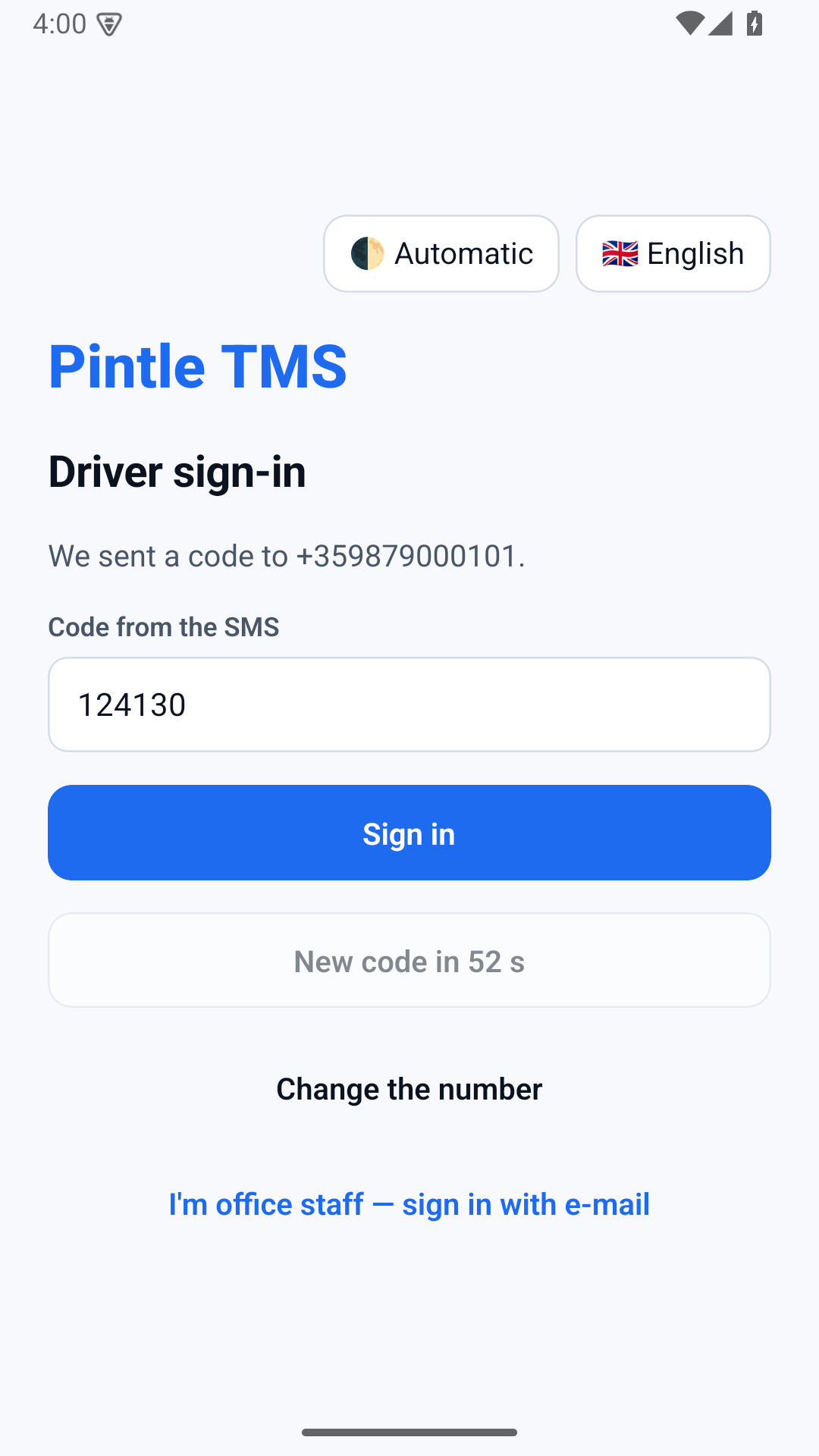
Section titled “Signing in”The driver opens the app (or pintletms.eu/login/driver in a browser), chooses I’m a driver — sign in with my phone, enters their number and gets a code by SMS. They enter the code and are in. Next time the app remembers them.
What the driver sees
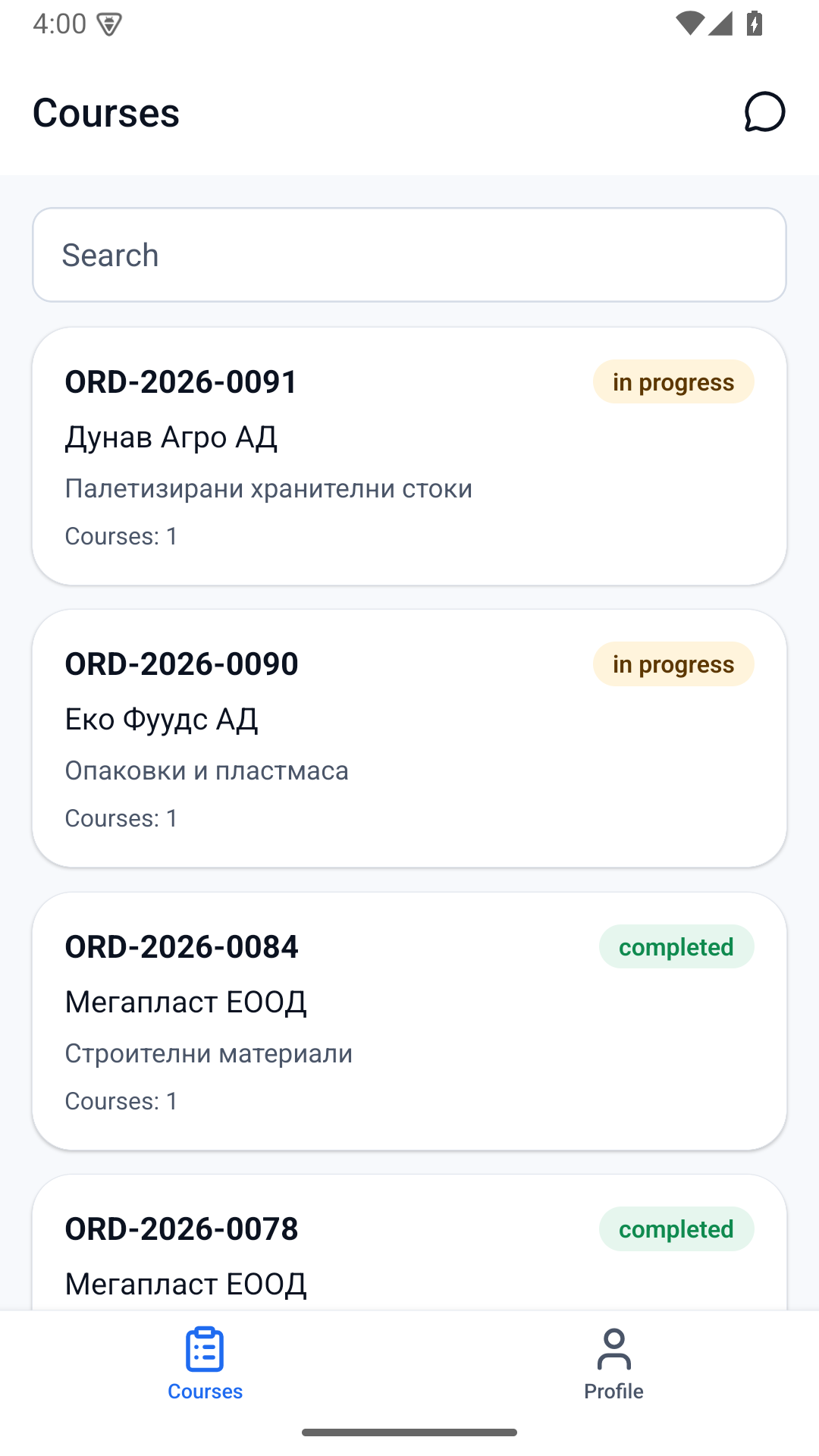
Section titled “What the driver sees”- Only their own courses — addresses, times, notes, cargo.
- No prices and no one else’s orders.
- Conversations with colleagues in the company.
The course in the app
Section titled “The course in the app”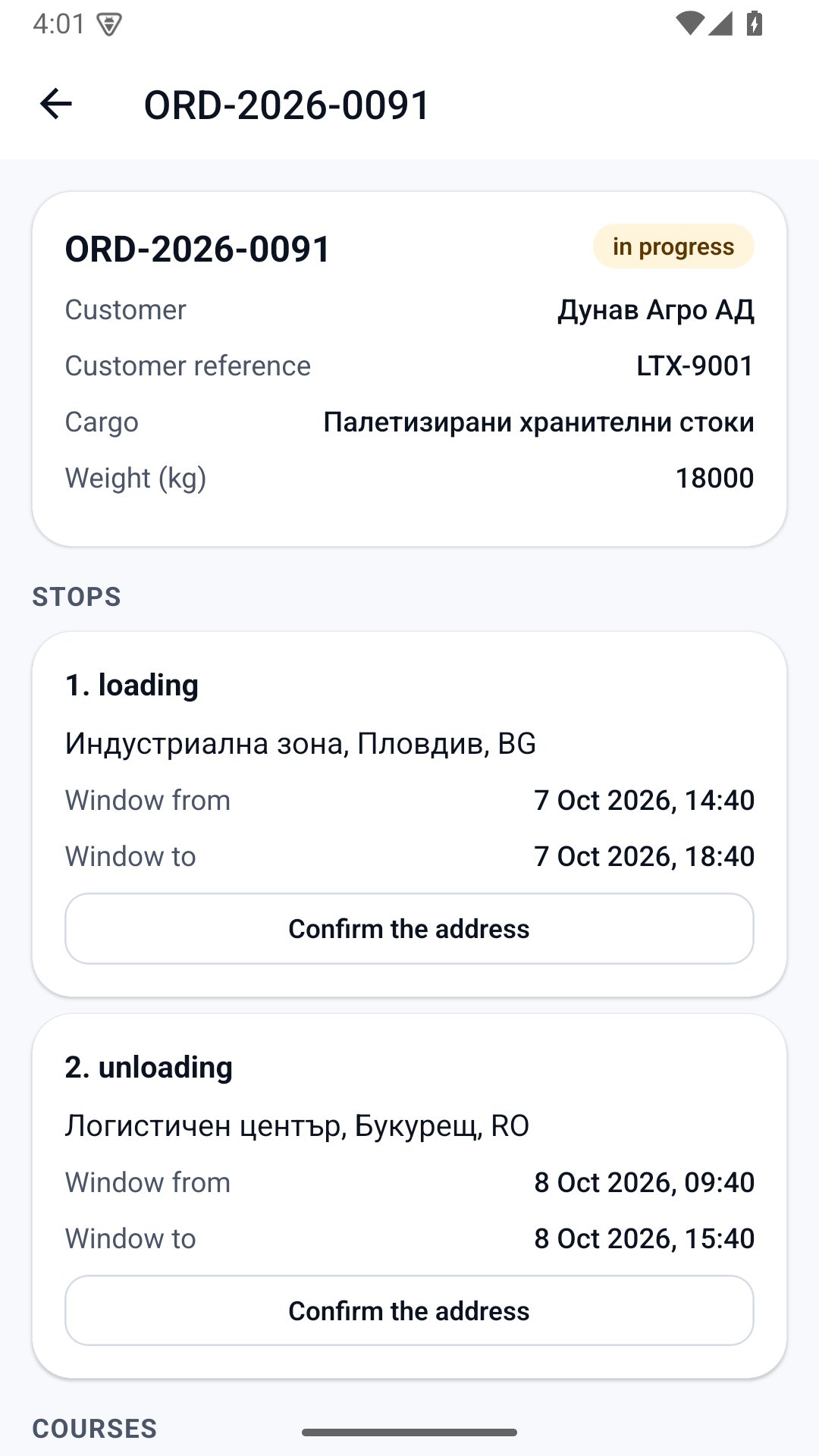
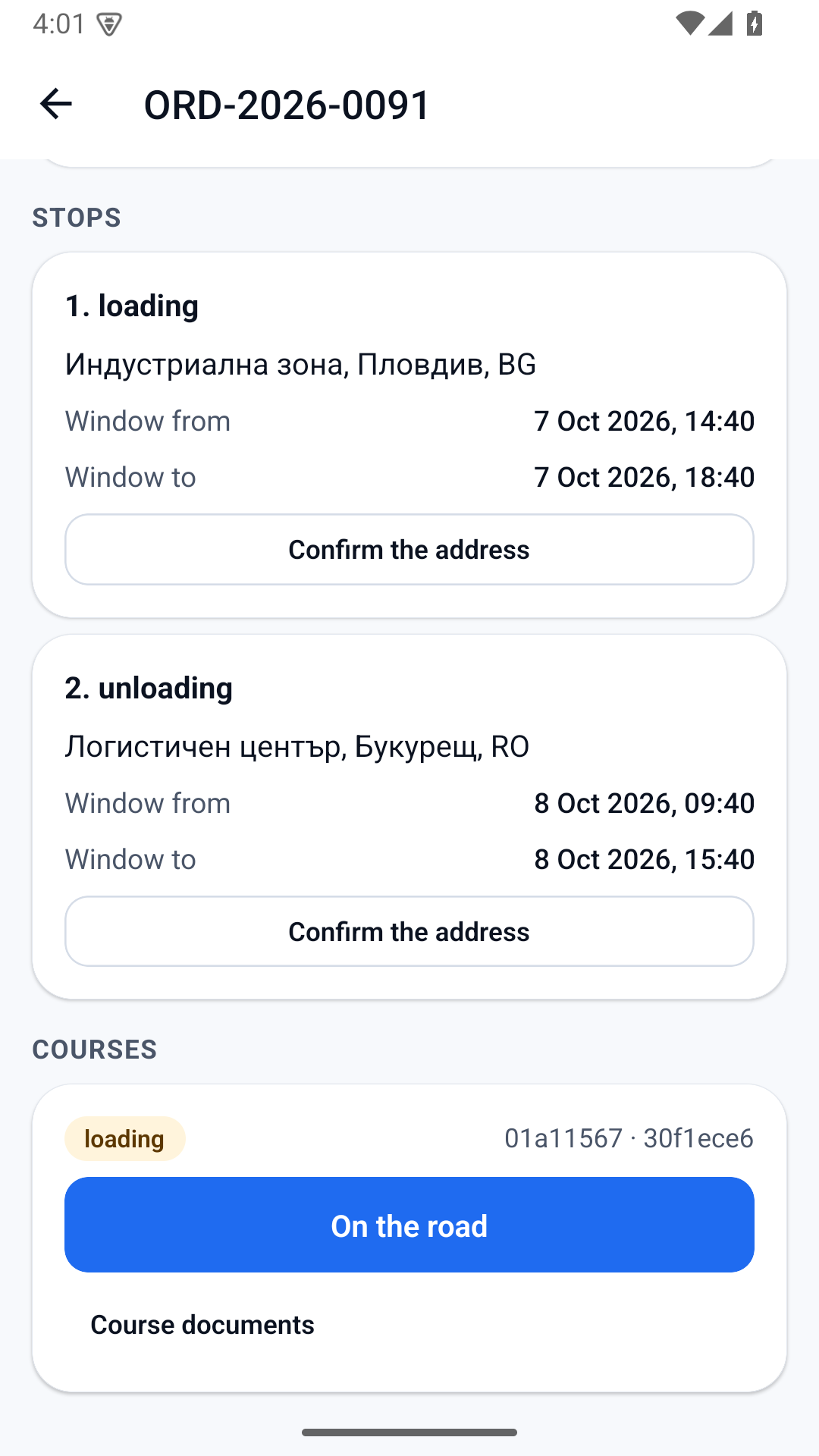
- The status button. At every step the driver presses the button: Start loading → On the road → Start unloading → Delivered. Completing the course is the office’s job.
- Position only on a press. The app takes the position only when the driver presses a button — it does not follow the phone in the background. If there is no signal, the status goes through without a position.
- Confirming the address. After loading or unloading the app asks “Is the address right?”. Near the address it is confirmed by itself.
- Documents. From Course documents: Photograph a document, Choose from the gallery or PDF. The photo of a CMR is checked for legibility at once.
Working without a connection
Section titled “Working without a connection”If there is no signal, a button press is not lost. The course shows the new status and under it a note: “No connection: it will be sent when there is one.” The action is kept with the exact time it was pressed and is sent automatically when there is a connection. In the office the status is recorded with the time of the press, not the time of arrival.