Company and team
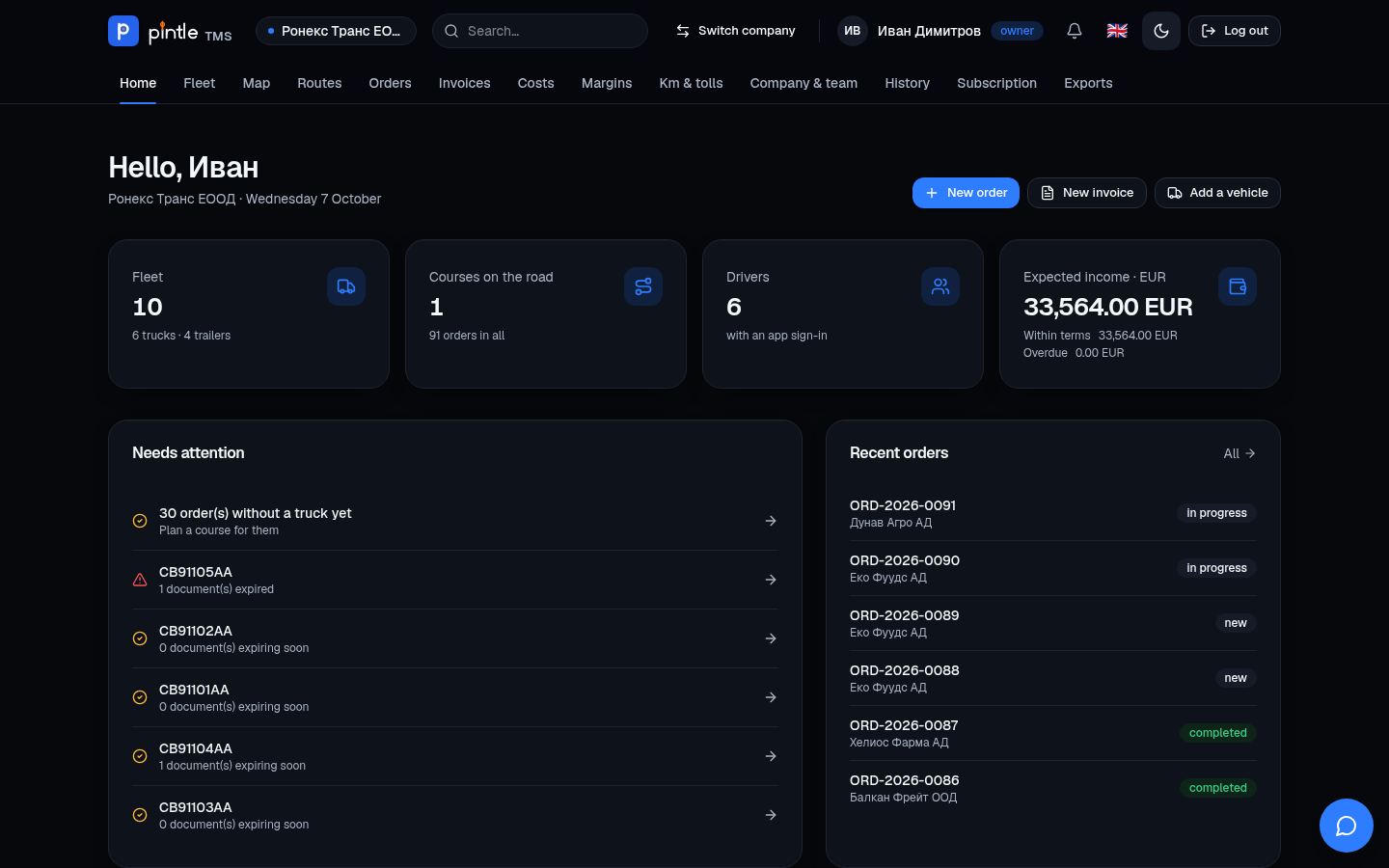
The Company & team menu is the place for everything that concerns the company as a whole. Part of it is for the owner only.
The company’s details
Section titled “The company’s details”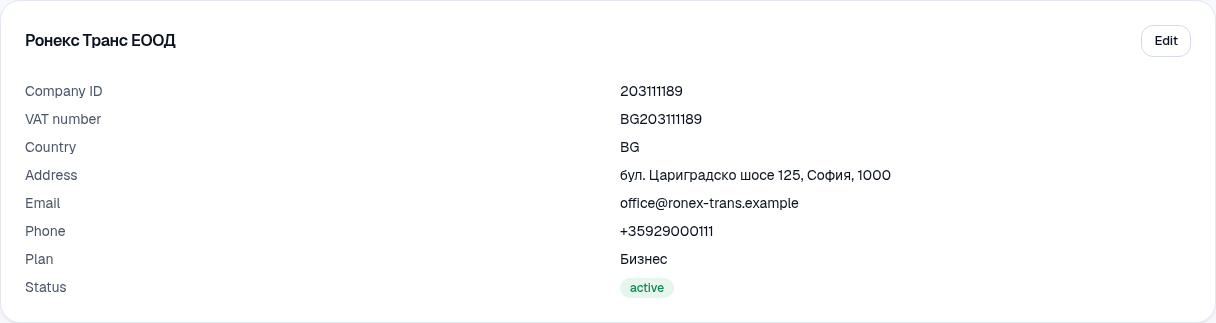
With Edit you change the name, company ID, VAT number, country, address, e-mail and phone. They are copied into every new invoice and document. For a Bulgarian company the system suggests the VAT number from the company ID.
Bank details
Section titled “Bank details”
Enter the IBAN and the bank and press Save. The IBAN is checked (length and check digits). The details are printed on every issued invoice. They are seen and changed by the owner only — a manager, a dispatcher and an accountant do not see them on the company’s page (on the issued invoices themselves the account is visible, because it is part of the document). Every change is recorded in the History.
Branding
Section titled “Branding”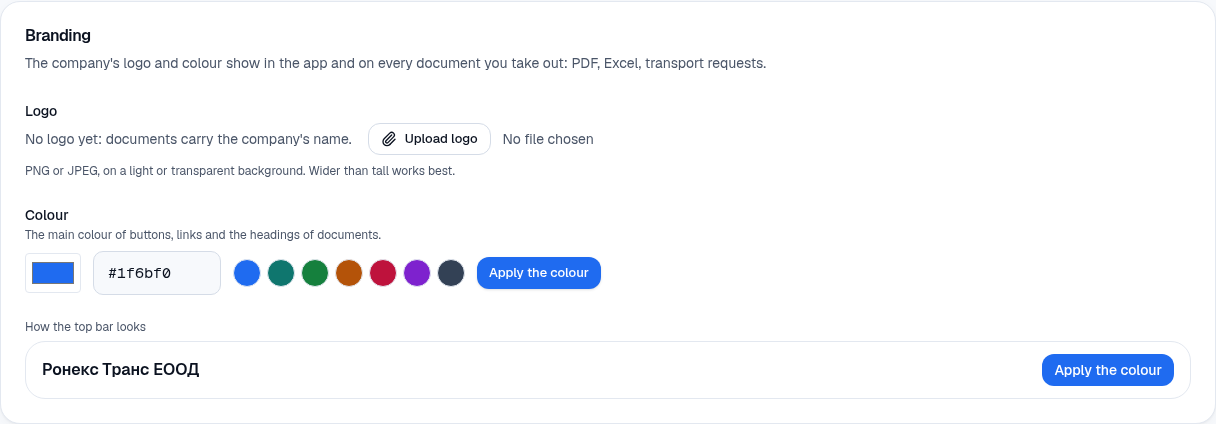
Upload a logo (PNG or JPEG, best on a light or transparent background) and choose a colour. The logo and the colour are seen in the application and in every document: the transport request, reports, Excel and the e-mails to your customers. The top bar shows your company’s logo.
Conditions in the transport request
Section titled “Conditions in the transport request”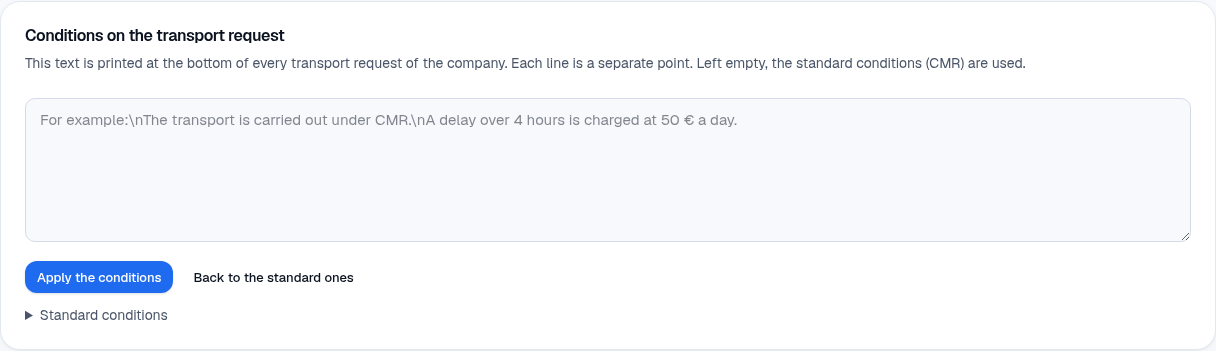
The text is printed at the bottom of every transport request (each line is a separate point). If you leave it empty, the standard conditions (CMR) are used. Back to the standard ones brings them back.
Messages between companies and to the team
Section titled “Messages between companies and to the team”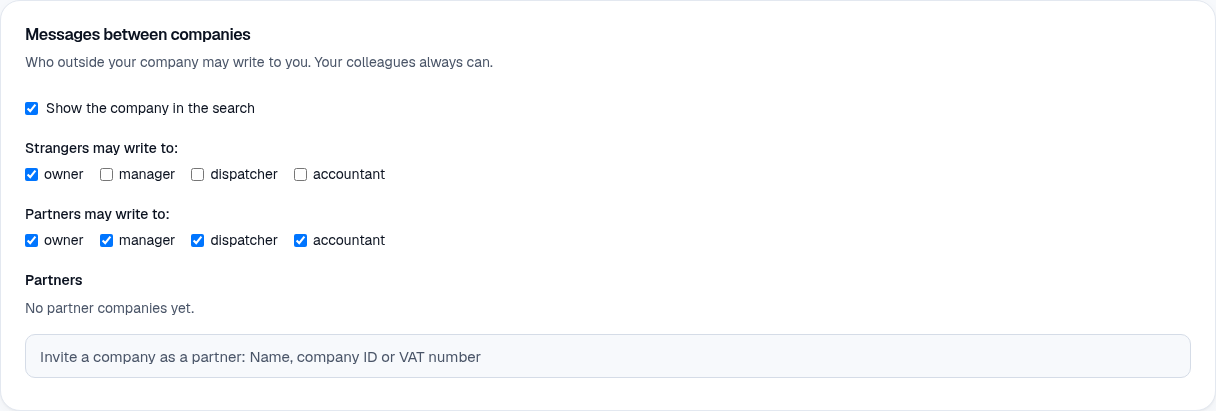
See Messages and search.
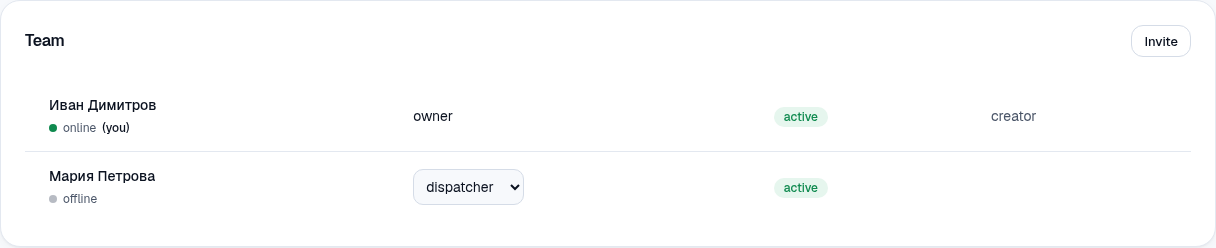
In Team you see the colleagues, their roles and status. Invite a new colleague with an e-mail and a role (manager, dispatcher, accountant); they get an activation e-mail. You can change their role, deactivate them or remove them. The number of users depends on the plan (Subscription).
Drivers
Section titled “Drivers”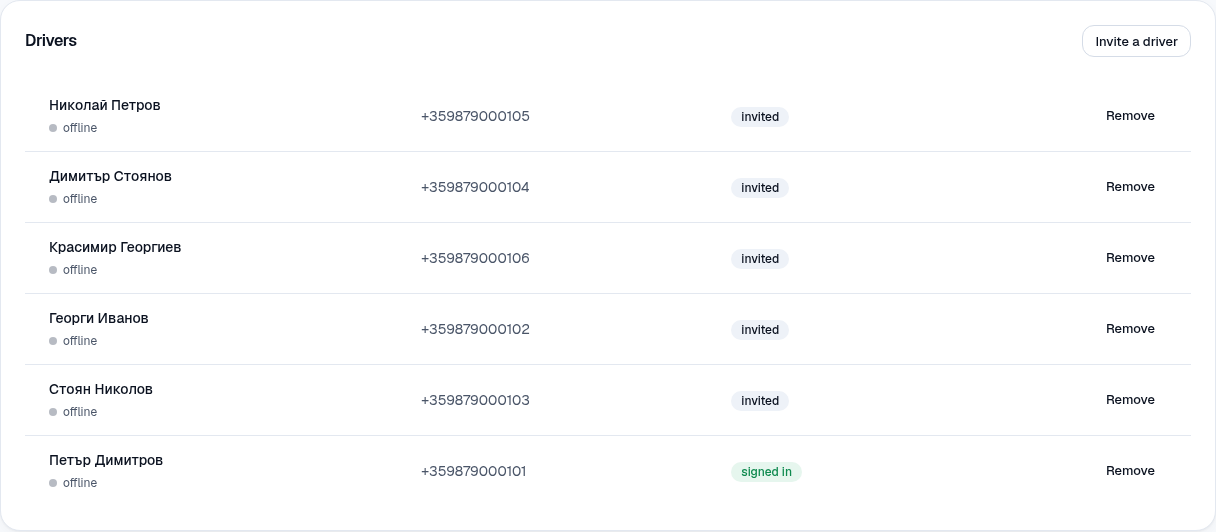
In Drivers are all the drivers with phone and status. With Invite a driver you add a new one (name, phone, language). See Drivers.
The history of actions
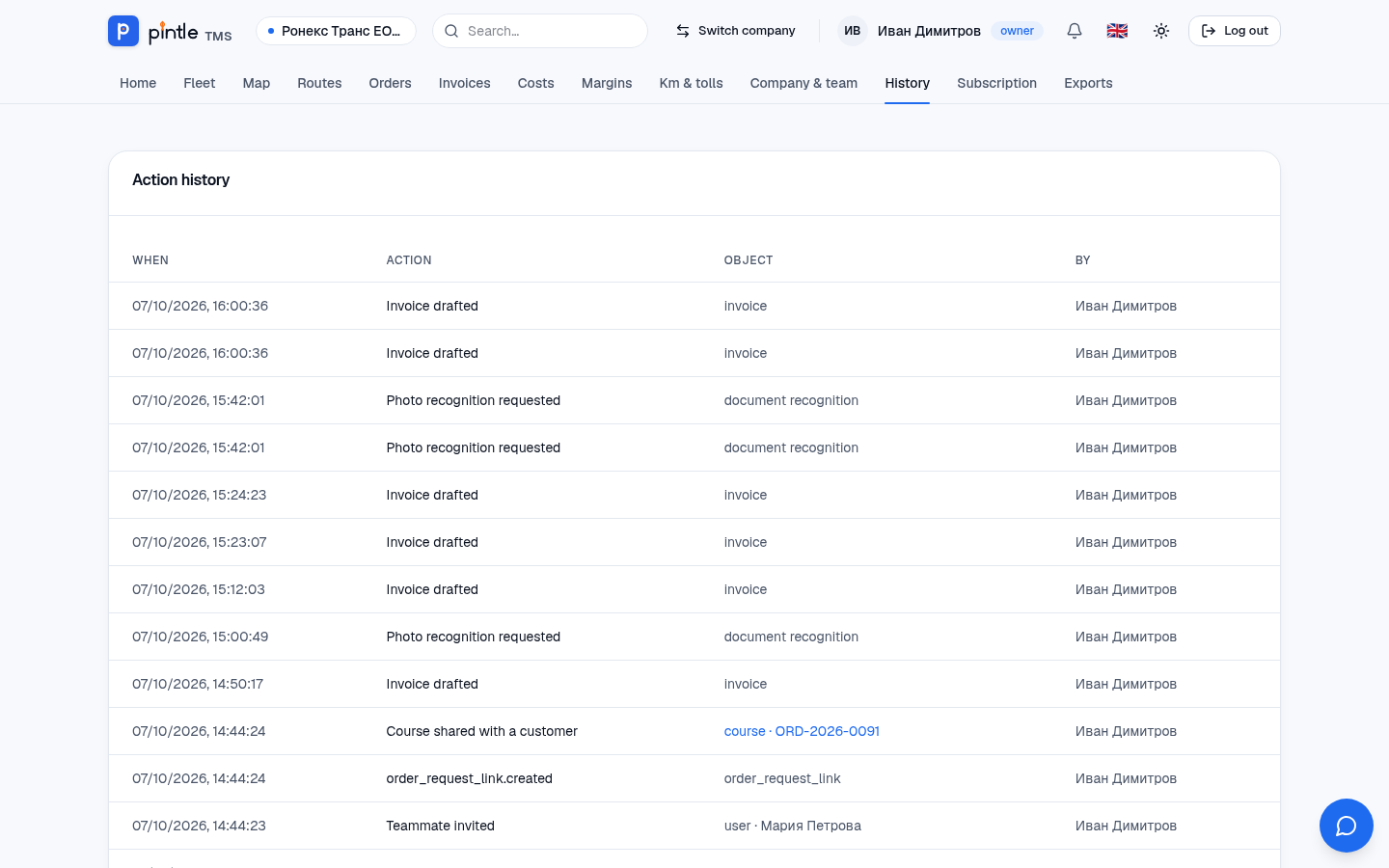
Section titled “The history of actions”History shows who changed what and when: orders, documents, invoices, team, settings, bank details. Every record leads to the object, if it is still available. The history is read-only.
Switching company and a new company
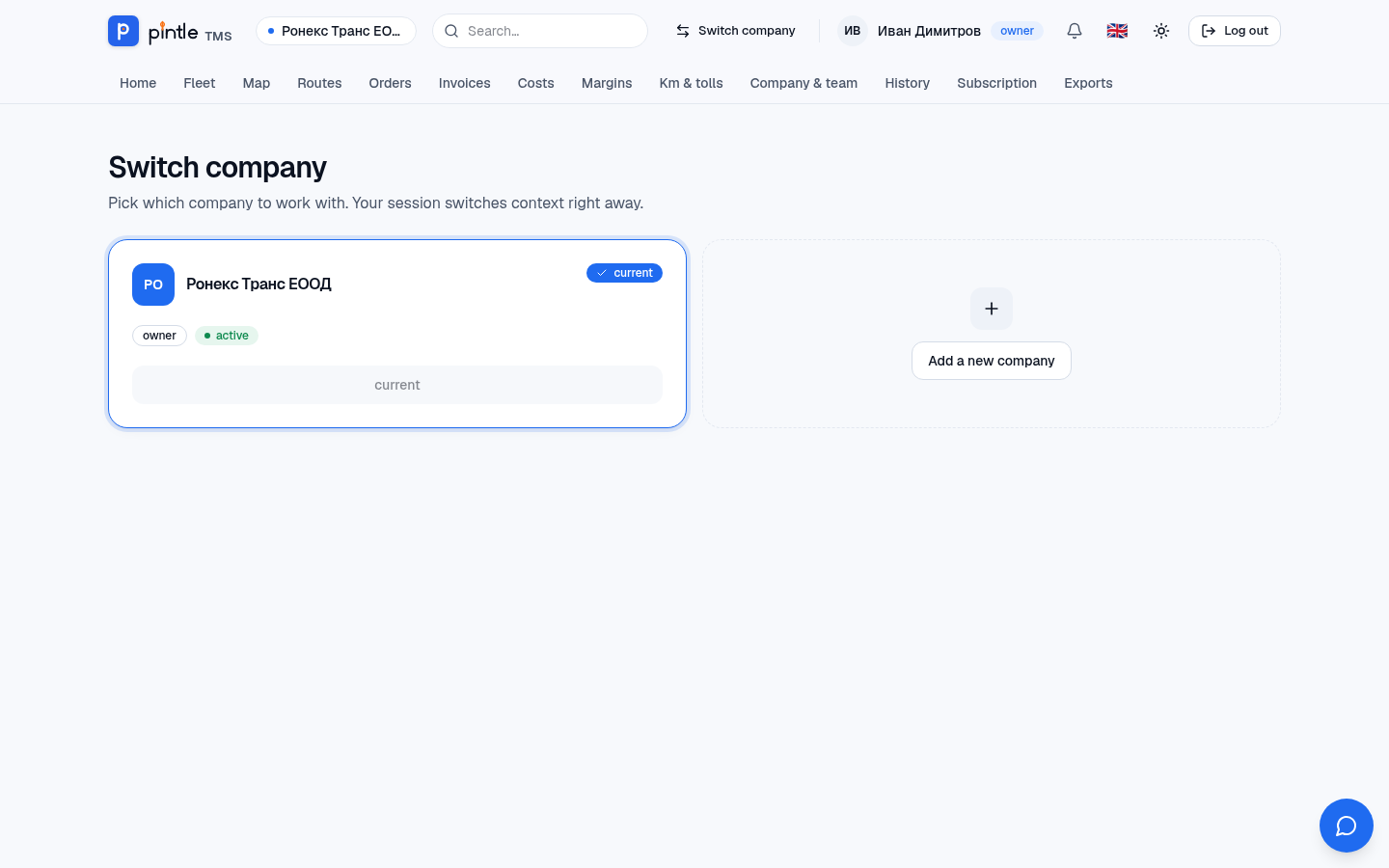
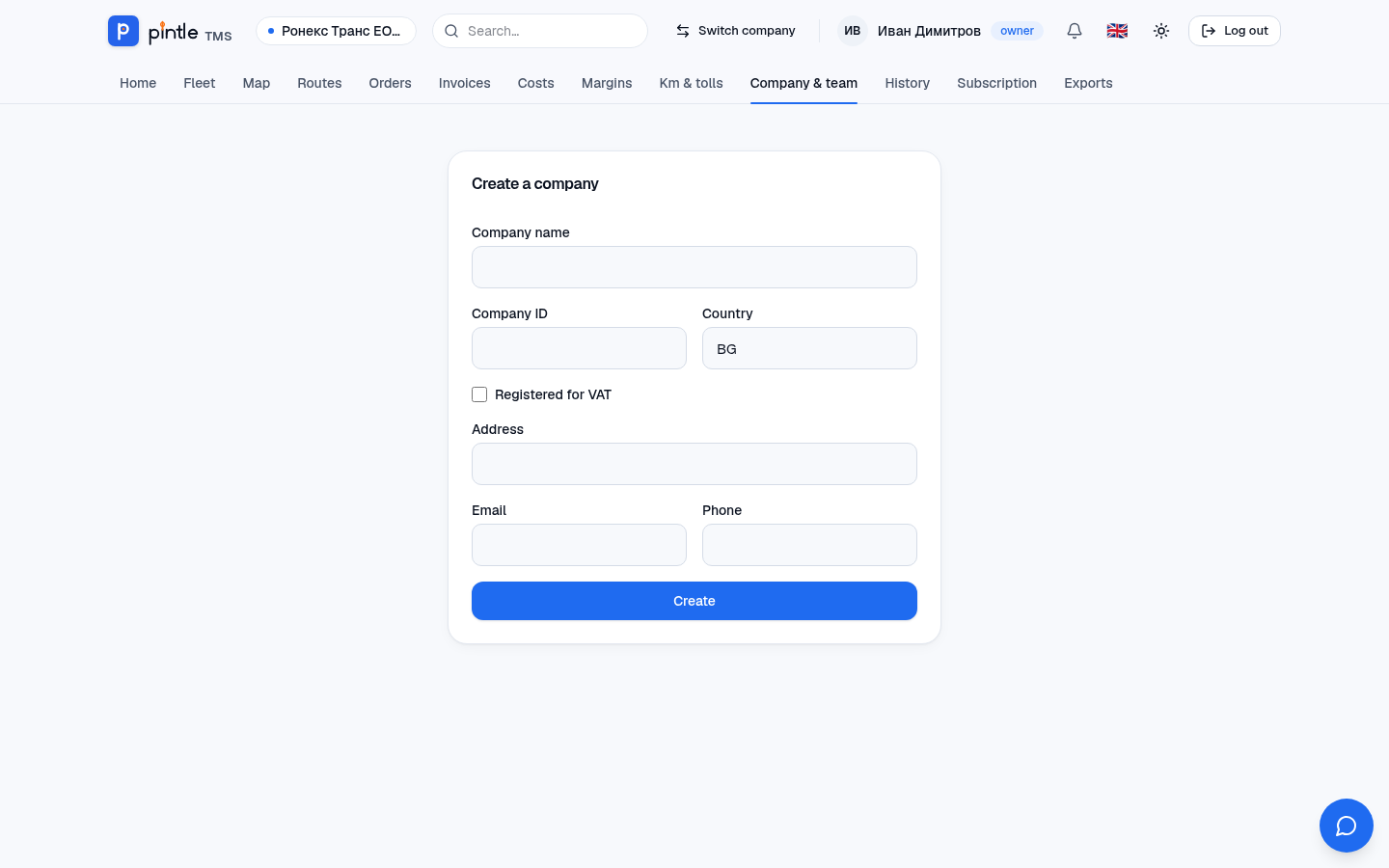
Section titled “Switching company and a new company”If you are in more than one company, Switch company at the top moves you between them. Each card shows the company and its status; Add a new company creates another one in the same account (according to the plan’s limit).
Your profile
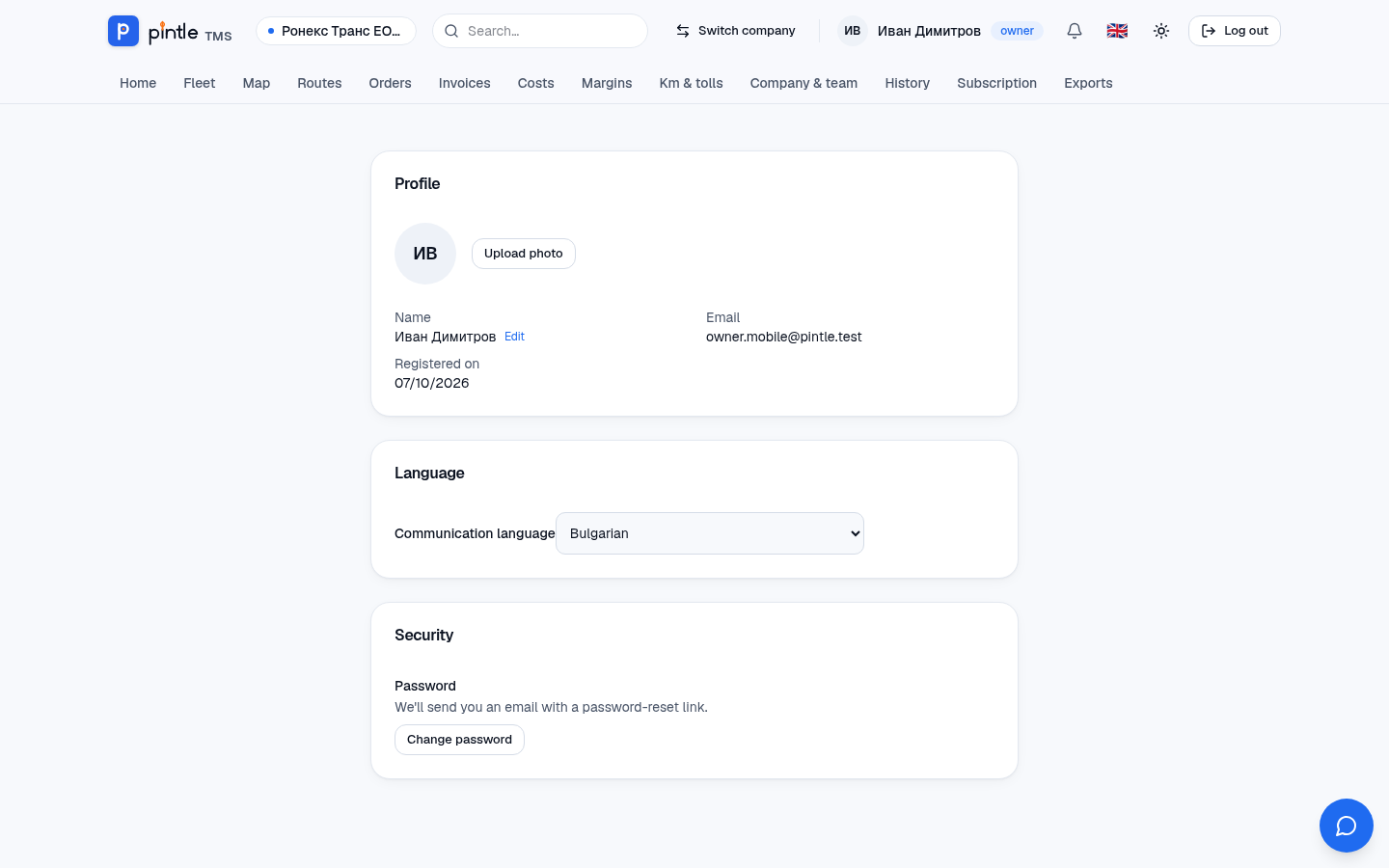
Section titled “Your profile”In your profile (your name at the top right) you change your name, photo and interface language; for a new password you get an e-mail with a link.
Dark theme
Section titled “Dark theme”The sun/moon button at the top right switches between a light and a dark theme. The choice is remembered.